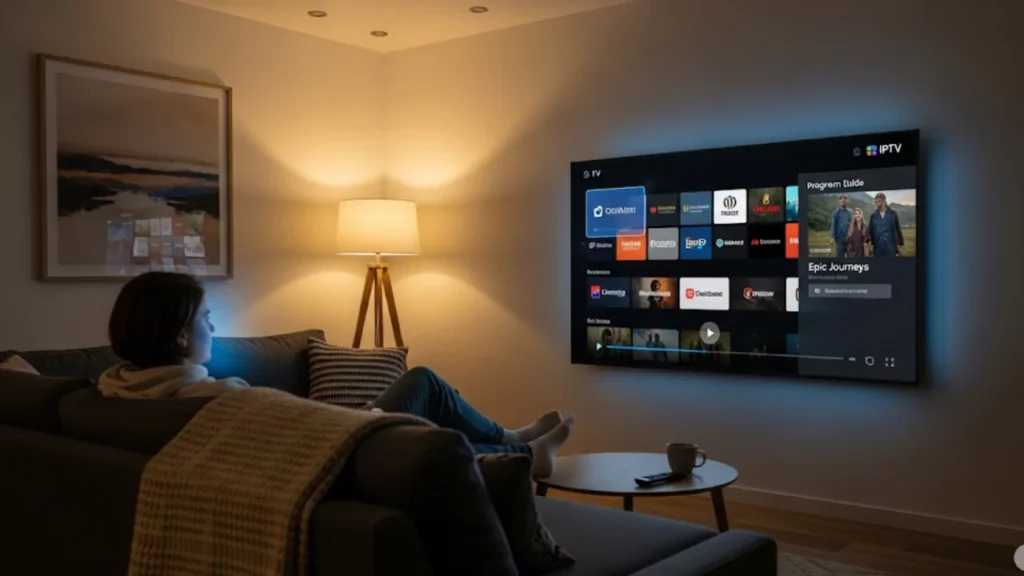
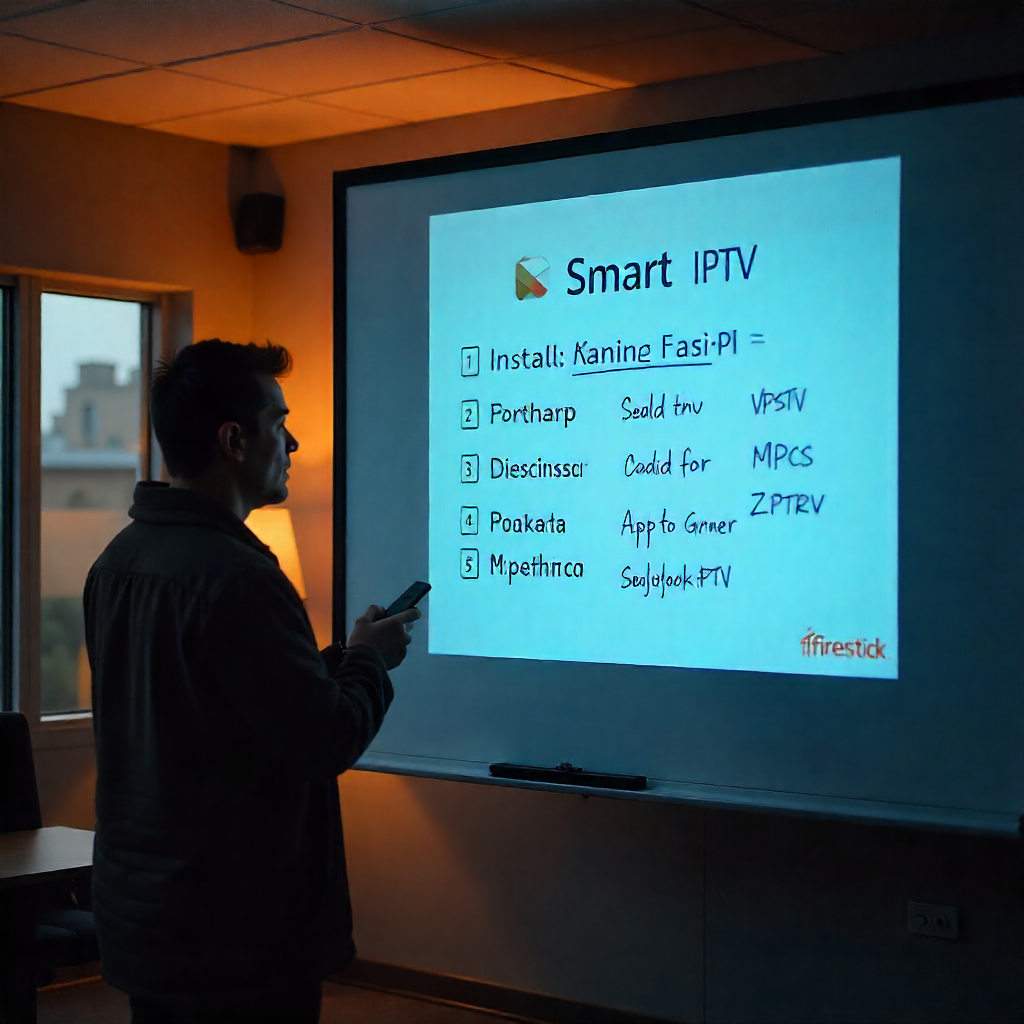
Setting up Smart IPTV firestick on your Amazon Firestick unlocks new streaming options. You can access live TV channels and on-demand content from everywhere. This guide takes you through each step of installing Smart IPTV. It covers everything from setup to optimization.
You must download the APK file using the Downloader App, enable apps from unknown sources, and set up your M3U playlists in order to set up Smart IPTV on your Amazon Firestick. This guide covers everything from installation to troubleshooting for optimal streaming performance.
If you’re new to streaming or want more options, you need to prepare before installing Smart IPTV on Fire TV. We’ll discuss how to enable developer options and fix common issues. This way, you can enjoy smooth HD streaming on your favorite device.
Understanding Smart IPTV (SIPTV)
Smart IPTV is a well-known IPTV player. It turns your Amazon Fire TV into a strong streaming platform. This app lets you stream content online, unlike traditional cable services. It works with many devices, like Android TV, Smart TVs, and Android boxes.
Key Features of Smart IPTV
The Smart IPTV interface offers several advantages for streaming device users:
- Support for M3U playlists and EPG URL integration
- Compatibility with Fire TV, Android TV, and Smart Android TV platforms
- Channel Selection tools with customizable viewing options
- Parental Controls for family-friendly content management
- External Player support for enhanced playback quality
Legality and Safety Considerations
Check the legal status of IPTV content in your area before installing. The Smart IPTV app is legal. Using it to access pirated content via IPTV subscriptions may violate local laws. Always choose legitimate IPTV Provider services and avoid content geo-restrictions violations.
Think about using a security solution or VPN. It helps protect your privacy when you stream. It also defends you against online threats.
Preparing Your Firestick for Installation
Ensuring Firestick Compatibility
Your Amazon Firestick must meet basic requirements for Smart IPTV installation:
- Fire TV Stick 4K or newer generation models
- Stable internet connection (preferably Ethernet Connection via Ethernet adapter)
- Available storage space for the APK file
- Active Amazon account
Enabling Apps from Unknown Sources
Access your Firestick settings and navigate to the Developer Option section. Turn on “Apps from Unknown Sources” to install apps not found in the Amazon Store. This step is important. You won’t find Smart IPTV in the Google Play Store or Amazon marketplace.
Toggle on “Apps from Unknown Sources” under Settings > My Fire TV > Developer Options.
Installing the Necessary Downloader App
Finding and Installing the Downloader App
The Downloader App serves as your primary tool for installing the Smart IPTV APK file. Search for “Downloader” in the Amazon Store and install this essential utility. The app allows you to download applications directly to your Fire TV device.
Open the Amazon Store. Search for “Downloader.” Then, select “Get” to install the app on your streaming device.
Configuring Downloader Settings
Once installed, optimize Downloader for better performance:
- Enable Delete APK files after install in settings
- Clear cache regularly to maintain smooth operation
- Bookmark frequently used download URLs
Installing Smart IPTV on Firestick
Using Downloader to Install Smart IPTV
To download the APK file, launch the Downloader app and type the URL of the Smart IPTV website. Go to the official Smart IPTV download page. Choose the right version for your Fire TV device.
The download usually takes a few minutes. It depends on your internet speed. Once complete, the installation prompt will appear automatically.
Entering M3U Links for Playlist Access
After installation, you’ll need M3U playlists from your service provider to access content. The Smart IPTV app needs M3U Link uploads or direct URL entry to work.
Contact your IPTV service providers. They can give you real M3U playlists and EPG URL info to fill your channels list.
Activating and Using Smart IPTV
Steps to Activate the Smart IPTV App
Launch Smart IPTV from your Fire TV home screen. The application will display a MAC Address that you’ll need for activation. Go to the Smart IPTV website using any browser. Enter your device’s MAC address and your playlist info.
The activation process connects your streaming device to your IPTV subscriptions. This lets you access live TV content.
Uploading and Managing Playlists
You can upload your M3U playlists using the Smart IPTV Website or the app. The system supports various playlist formats. You can organize channels however you like.
You can configure External Player settings. This helps improve playback compatibility with different content types.
Optimizing Your IPTV Experience
Importance of a Stable Internet Connection
Reliable internet connectivity is essential for smooth streaming performance. Use an HDMI port adapter for a stable ethernet connection. Wi-Fi Optimization techniques can also improve streaming quality on wireless networks.
Minimum recommended speeds depend on content quality. Compared to standard definition content, HD streaming requires more bandwidth.
Using a VPN for Enhanced Privacy
Organize your channels list effectively:
- Use External EPG sources for program guide information
- Create custom channel groups for easier navigation
- Regularly update playlists from your Content Provider
- Enable automatic playlist refresh settings
Troubleshooting Common Issues
Resolving Buffering Problems
Buffering issues often stem from insufficient internet speeds or server overload. Check your connection speed and consider switching to ethernet connection for improved stability. The display refresh rate settings may need to be adjusted. If you have server issues, contact customer support.
Fixing Login and Access Issues
If you have login issues, check your MAC Address registration. Also, make sure your IPTV service provider has activated your account. Double-check your M3U URL entries and confirm your online playlist accessibility.
Enhancing and Customizing Your Viewing Experience
Customizing App Settings for Better Performance
Optimize Smart IPTV for your preferences:
- Adjust aspect ratio settings for your display
- Configure Parental lock features for appropriate content
- Set up External Player options for improved playback
- Enable EPG URL sources for program information
- Customize remote control button assignments
Regular Maintenance and Updates
Update your Smart IPTV app regularly. Also, maintain your Fire TV device often. Install firmware updates when they are available. Also, clear cache data often to keep performance at its best.
You could try IPTV Smarters or IPTV Smarters Pro as alternatives. However, Smart IPTV is still a favorite for many users. It works well on Smart Android TVs and devices connected via USB drives.
Enjoying Your Enhanced Streaming Experience
Installing Smart IPTV on your Firestick unlocks great entertainment options. You also stay in control of what you watch. Use legitimate content providers and follow local rules for IPTV access.
For seamless streaming, do regular maintenance. Use strong security and ensure a reliable internet connection. If you need more help, reach out to your service provider. Support materials are also located at the bottom of this page.
Frequently Asked Questions
- Is Amazon Firestick good for IPTV?
Yes, Firestick works well for IPTV as it supports various apps and smooth streaming. - Is it legal to use IPTV on Firestick?
It’s legal if you stream licensed content; illegal streams can get you in trouble. - Do you need a VPN for IPTV on Firestick?
A VPN is recommended to protect your privacy and bypass geo-restrictions. - Which IPTV is best for Firestick?
Popular options include Smart IPTV, TiviMate, and IPTV Smarters. - Can I watch IPTV for free on Firestick?
Yes, but free IPTV often has limited channels and lower quality compared to paid services.
About The Author