M3U8 choppy streams can turn your IPTV experience from entertainment into frustration. To enjoy smooth, buffer-free viewing, be aware of the challenges in segmented streaming. After that, use these troubleshooting steps.
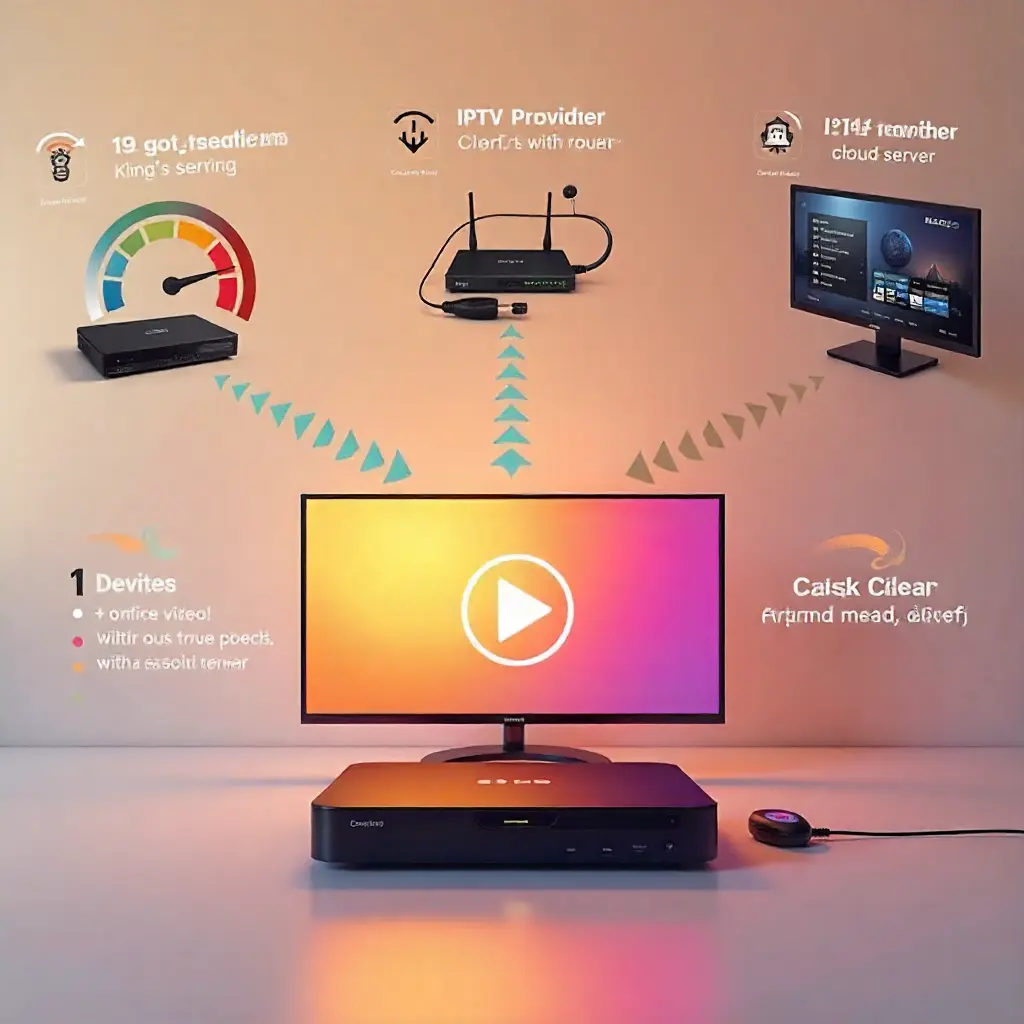
Choppy M3U8 streams usually happen because of unstable internet, overloaded IPTV servers, or device performance issues. To fix buffering, start by testing your internet speed and switching to a wired Ethernet connection for stability. Then, check if your IPTV provider is experiencing server congestion, and finally, optimize your streaming device by clearing cache, adjusting buffer settings, and keeping it cool. A smooth, buffer-free IPTV experience comes from balancing all three factors, your internet, your provider, and your device.
Why Do M3U8 Streams Buffer?
The Frustration of Choppy IPTV Streams
Nothing ruins a movie night like constant buffering. Choppy streams can spoil your fun, whether tuning into live TV or catching up on shows. They interrupt the flow and can test your patience. IPTV buffering impacts millions of viewers globally. This issue is worse during peak hours when networks are most crowded.
Why M3U8 Streams Can Be Particularly Prone to Buffering
M3U8 files contain playlists of video segments rather than single continuous streams. Each segment has to download fully before playback can resume. This leads to several points where buffering issues might happen. M3U8 streams differ from traditional protocols. They rely on steady content delivery through many small TS files.
What This Guide Will Cover
This comprehensive guide addresses the 3 main reasons of uneven M3U8 streams:
- Internet connection problems and speed drops
- IPTV provider server performance issues
- Streaming device optimization and app settings
- Network cable vs Wi-Fi signal comparisons
What Makes M3U8 Format Unique?
What is an M3U8 File?
An M3U file is a playlist. It holds hyperlinks to video segments, no longer the movies themselves. Think of it like a recipe. It tells your streaming device which video segments to mix and how to use them. This format enables adaptive streaming quality based on your available internet speed.
The Segmented Nature of M3U8 Streams (.ts files)
M3U8 streams break video content material into small. ts documents, normally 2-10 seconds every. Your IPTV app downloads these segments sequentially, creating a continuous viewing experience. If a segment doesn’t download fast enough, you’ll see buffering as the app waits.
How M3U8 Playback Works: Stitching Segments Together
Your streaming device checks your internet speed all the time. Then, it picks the best stream resolution from the options available. If the bandwidth drops, the player automatically switches to a lower quality. This helps keep the game going. This adaptive behavior helps prevent buffering but can cause quality fluctuations.
The “Cryptic Entries” Explained: Multiple Stream Variants
M3U8 files usually have several stream profiles for various resolutions. Those consist of 480p, 720p, 1080p, and 4K content. These variants let your device change streaming quality based on network conditions. However, common switching between profiles can create uneven playback reviews.
Why Segmented Streaming Can Lead to Choppiness
- Segment Download Timing: Each TS stream segment must arrive before the last one ends.
- Server Congestion: Popular channels experience higher demand, slowing segment delivery
- Network Interruptions: Brief connectivity issues can cause missing segments
- Buffer Size Limitations: Small stream buffers increase sensitivity to network variations
How Fast Should Your Internet Be?
The Importance of Consistent Bandwidth
Stable internet speed matters more than peak speed for IPTV streaming. A steady 15 Mbps connection beats an unreliable 50 Mbps one that often drops to 5 Mbps. Your Internet provider should ensure reliable bandwidth all day, particularly in the evening.
Running a Speed Test: More Than Just Download Speed
Testing your internet connection requires more than a simple speed check. Check your connection at different times to spot patterns in speed drops. From 7 to 11 PM, peak usage hours often lead to slower performance. This happens because of congestion in the neighborhood network.
Using Speed Test for Accurate Results
Follow these numbered steps for proper speed testing:
- Close all streaming apps and pause automatic device updates before testing
- Run multiple tests at different times throughout the day to identify patterns
Speedtest.net provides reliable download speed, upload speed, and ping latency measurements. Tune your effects for the duration of top and rancid-top hours. This may assist you see how constant your connection is.
Checking Latency and Packet Loss with PingPlotter
High latency (ping above 100ms) and packet loss create stuttering in live streaming. PingPlotter helps you find where issues start. It could be your local network, your Internet provider, or the IPTV provider’s servers. This diagnostic tool is particularly valuable when buffering issues occur intermittently.
The Difference Between Wi-Fi and Wired Connections
Wi-Fi signals face interference from other devices, walls, and distance from your router. Ethernet connections provide stable, dedicated bandwidth without wireless interference. A direct network cable is more reliable for streaming than even the best routers.
Why an Ethernet Connection is Crucial for Stability
Wired connections offer several advantages:
- Consistent bandwidth without signal fluctuations
- Lower latency compared to Wi-Fi signal transmission
- No interference from neighboring networks or household devices
- Maximum throughput from your internet connection
Think about running an Ethernet cable to your central streaming spot. It might need some cable management at home, but it’s worth it.
Troubleshooting Wi-Fi Issues
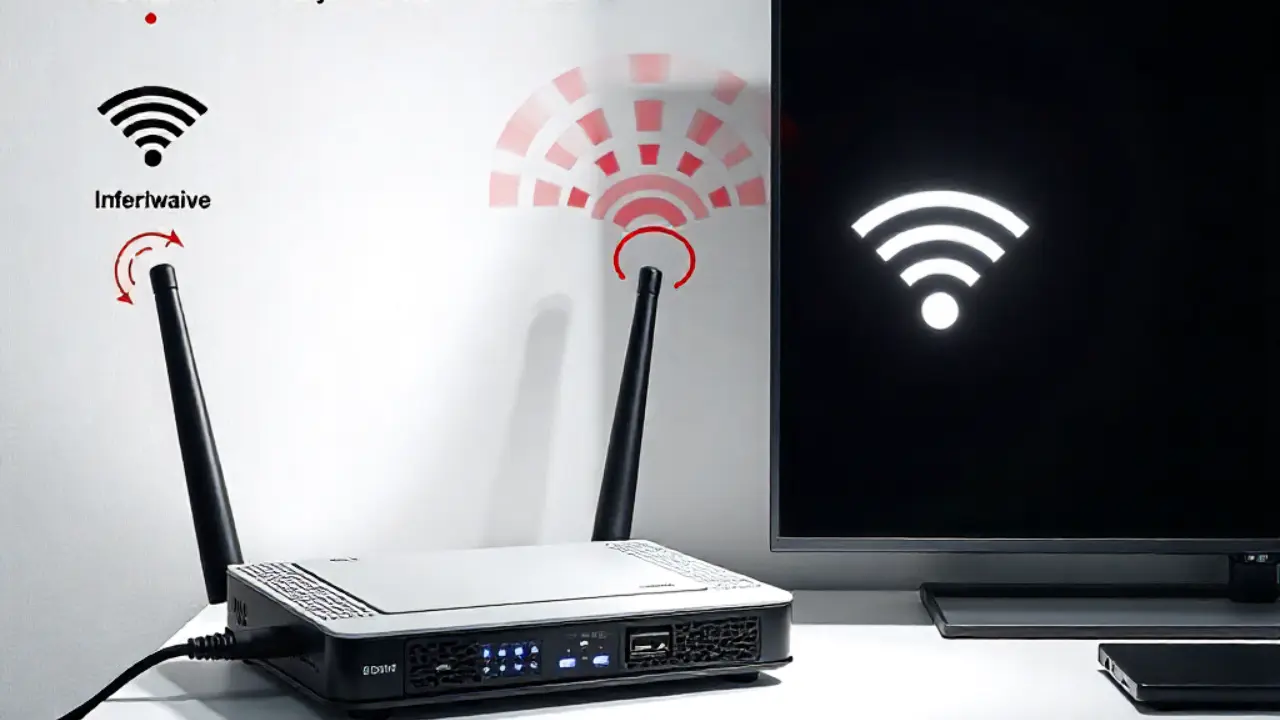
Move your streaming device closer to your router to improve signal strength. Check for interference from baby monitors, microwaves, and other 2.4GHz devices. Consider upgrading to a 5GHz Wi-Fi network if your router supports dual-band operation.
Signal Strength and Interference
Strong Wi-Fi signals (above -50dBm) give better streaming performance. Weak signals (below -70dBm) do not perform as well. Check your device’s Wi-Fi settings. Look at the signal strength. This will help you find the best spot for your streaming setup. Metal objects and concrete walls significantly reduce Wi-Fi signal quality.
Wi-Fi Extenders and Their Limitations
Wi-Fi extenders can improve coverage, but often reduce overall speed by half. They create additional network hops that increase latency and reduce streaming quality. A mesh router system covers your whole home better than traditional Wi-Fi extenders.
What About Your IPTV Provider?
Understanding Server Load and Congestion
Popular channels draw more viewers, especially during live events and busy hours. Your IPTV provider must balance server capacity across thousands of simultaneous viewers. Server congestion directly impacts segment delivery speed and causes buffering throughout their network.
How Server Capacity Impacts M3U8 Segment Delivery
Overloaded servers delay TS streams segment delivery, creating gaps in your video playback. Well-managed IPTV providers use load balancing across multiple servers to maintain consistent performance. However, budget providers often experience server overload during peak viewing periods.
The Role of Your IPTV Provider’s Infrastructure
Quality IPTV providers invest in robust content delivery networks and multiple server locations. They reveal server performance and robotically redirect visitors from overloaded servers. Ask potential providers about their infrastructure and uptime guarantees before committing.
When to Contact Your IPTV Provider
Contact your provider if you notice buffering on several channels. This is important, especially during off-peak hours. Document specific channels, times, and error messages. This helps the technical support team spot server-side issues. Many providers offer alternative server options or can adjust your stream profile settings.
Geolocation and Server Location: Optimizing Your Connection
Pick IPTV providers with servers close to you. This will lower latency and speed up delivery. International providers often offer a wider range of channels. However, they usually have higher latency and slower loading times. don’t forget the exchange-off among content material range and streaming great.
Can Your Device Handle Smooth Streaming?
Device Performance: The Bottleneck Factor
Older streaming gadgets conflict to decode excessive-decision video while concurrently downloading new segments. Smart TVs, Android TVs, and set-top boxes have different processing capabilities. A device that handles 1080p smoothly might stutter when attempting 4K content playback.
Overheating and Its Impact on Processing Power
Streaming devices generate significant heat during operation:
- Monitor your device temperature during extended viewing sessions
- Ensure adequate ventilation around your streaming device
- Recall outside cooling enthusiasts for Android gadgets at risk of overheating
- Clean dust from vents on Fire TV, Apple TV, and other streaming devices
Overheating causes processors to throttle performance, leading to choppy playback and increased buffering. Devices like the Amazon Fire TV Stick, NVIDIA Shield, and Android TV boxes need good airflow to work well.
Pro Tips for Buffer-Free Streaming
Optimize your streaming experience with these advanced techniques:
- Clear your app cache weekly in IPTV Smarters and similar streaming apps
- Adjust buffer size settings in PVR IPTV Simple Client for Kodi users
- Enable hardware acceleration on capable devices to reduce processor load
- Schedule automatic restarts for your streaming device to clear memory leaks
- Monitor your ISP throttling patterns and consider VPN services if needed
Try different stream profiles during setup. This helps you find the best balance between quality and stability. Focus on your internet connection and streaming device.
Final Thoughts: Smooth Streaming Success
To fix M3U8 choppy streams, observe a clean plan. Start by checking your internet connection. Next, evaluate your IPTV provider’s performance. Finally, optimize your streaming device. Start with the basics, test your internet speed, and switch to an Ethernet cable if possible. Buffering problems often disappear when your connection to the IPTV provider is strong.
Remember that streaming quality depends on the weakest link in your setup chain. Make sure your Android device or Nvidia Shield can manage the streaming quality you want. Stay patient and troubleshoot well. You’ll attain the smooth, buffer-free IPTV experience you need.
Frequently Asked Questions
- Why is my M3U8 stream choppy or stuttering?
Choppy playback can happen for a few reasons. It might be due to a small buffer, network issues, or a slow server. This can happen even if the stream works well in other apps. - How do I switch from MPEG-TS to M3U8 in IPTV software?
Use your app’s “Stream Format” setting or edit the link to end with. Go to the “Stream Format” or “Stream Extension” setting in your IPTV app. You can also change the URL to end with it to force HLS playback. - Can buffer settings fix choppy M3U8 playback?
Absolutely. For instance, in hls.js you can use to increase how much content is preloaded, smoothing playback. - Why does VLC freeze with M3U8 streams?
Later versions of VLC may have a bug with adaptive streaming. Replacing the with the version from VLC 3.0.8 often resolves it. - What is an M3U8 file?
M3U8 is an HLS playlist format. It holds segment URLs and metadata. This allows adaptive bitrate streaming, making quality adjustments smooth and easy.
About The Author