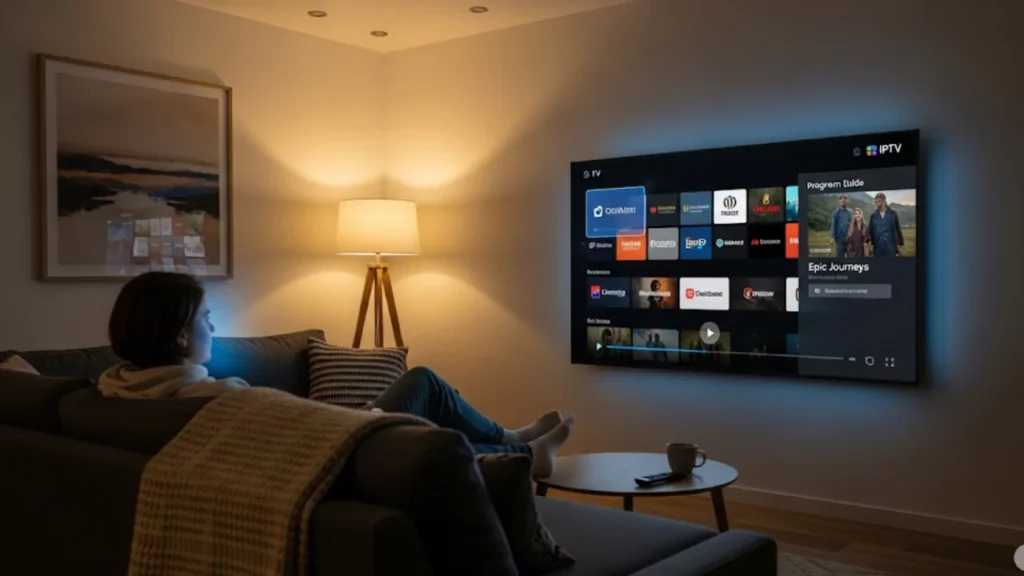

IPTV setup and fixes on your streaming device should be easy. But sometimes, technical issues can turn your excitement into frustration. This guide will help you fix buffering issues, installation errors, and connection problems. You can get your IPTV service running smoothly on Fire TV Stick and Kodi.
If your IPTV isn’t working on Firestick or Kodi, the fix is often simple. Check your internet speed, update your IPTV app, clear cache, and verify M3U playlist details. For buffering or freezing, use a VPN, close background apps, and lower streaming resolution. If channels still don’t load, refresh or replace your playlist link. These quick troubleshooting steps will restore smooth IPTV streaming on Firestick, Kodi, and other devices.
Understanding IPTV and Its Legality
IPTV stands for Internet Protocol Television. It gives you access to live TV and on-demand content via your internet connection. This is not the same as conventional satellite or cable. Your IPTV provider sends content straight to your streaming device. This includes Amazon Firestick, Android TV, and Smart TV.
Your IPTV subscriptions and content provider determine IPTV’s legal status. Legitimate streaming services like Netflix or Hulu use IPTV technology legally. However, some services may offer pirated content or bypass content geo-restrictions illegally. Make sure your service provider is legal. Check if they have the right licenses for their content.
Popular devices for IPTV are the Fire TV Stick, Android TV boxes, Nvidia Shield, Shield Pro, and Apple TV. Fire TV and Kodi are the top picks for IPTV fans. Each platform has unique features.
Overview of Firestick and Kodi Platforms
Amazon Fire TV devices, like the Fire Stick and Fire TV Stick, use Fire OS. They offer easy access to streaming apps. You can install IPTV apps from the Amazon Appstore. You can also sideload APK files with tools like the Downloader app or ES File Explorer.
Kodi is a strong media center. It turns any streaming device into a full entertainment hub. The Android version of Kodi works with many addons. This includes PVR clients and the PVR IPTV Simple Client. Windows PCs, Android TV boxes, and even smart Android TVs can all run Kodi.
Both platforms offer VPN services, such as CyberGhost VPN. This helps protect your privacy and bypass streaming blocks. Knowing your hardware acceleration and Android version helps your devices run better.
Installing Smart IPTV on Firestick
Smart IPTV ranks among the most popular IPTV applications for Amazon Fire TV devices. You must enable apps from unknown sources in your Fire TV settings before installing.
Using the Downloader App for Installation
- Navigate to My Fire TV under Settings > Developer Options
- Enable “Apps from Unknown Sources” and “ADB Debugging”
- Install the Downloader app from Amazon Appstore
- Launch the downloader and type the URL of the Smart IPTV APK file
- Download and install the application
The Downloader app simplifies sideloading applications that aren’t available through official channels. To prevent malware or security threats, only download APK files from reliable sources.
Configuring Smart IPTV Settings
After you install Smart IPTV, you need your M3U playlist URL or MAC address from your IPTV provider. Open the app settings. You can fill in your subscription details there and set up the Electronic Program Guide.
Your IPTV provider should supply these credentials along with any additional server information. Some providers have several server locations. This helps improve streaming performance based on where you are.
What Common Firestick Issues Need Fixing?
Fire TV devices can experience various performance issues that affect IPTV streaming quality. These problems often stem from network connectivity issues, insufficient storage, or ISP throttling.
Resolving Buffering and Performance Problems
IPTV buffering is often caused by slow internet speeds or network congestion. Test your connection with your provider’s speed tools for smooth streaming. Also, think about using an Ethernet connection for better stability. If Wi-Fi is your only option, move your device closer to the router or use a Wi-Fi extender. On older Fire TV devices, turning on hardware acceleration in your IPTV app can lower CPU load. This change can also improve streaming quality.
Addressing Internet Speed and ISP Throttling
Many internet service providers implement ISP throttling for streaming traffic during peak hours. This practice can cause severe buffering issues even with high-speed internet connections.
A VPN server helps you avoid ISP throttling. It does this by encrypting your traffic and hiding your streaming activities. Services like CyberGhost VPN offer optimized servers specifically designed for streaming applications.
Keep an eye on your internet speeds all day long to spot trends in ISP throttling. If you see speed drops at certain times, contact your service provider.
Clearing Cache and Managing Storage
- Fire TV devices have small storage. It fills up fast with cached data and temporary files
- Clear your cache frequently to avoid app crashes and storage-related performance problems.
- To clear cache for individual apps, go to:
- Settings > Applications > Manage Installed Applications.
- Uninstall unused applications to free up additional storage for IPTV apps
- Use the Kodi Log File Uploader. It helps find storage issues and access system details. This tool is great for troubleshooting ongoing performance problems.
Installing IPTV on Kodi
Kodi is flexible, making it great for IPTV streaming. You can use different addons and PVR clients for this. The installation process changes a bit based on your chosen media sources and add-ons.
Compatible Add-ons for IPTV
Adding IPTV to Kodi is simple with the PVR IPTV Simple Client. It supports M3U playlists and integrates EPG for live TV. Third-party addons can add features. But they might also bring legal risks from their content sources. So, avoid P2P-based addons because of piracy and security issues. Real Debrid boosts streaming reliability. It offers premium server access and cuts down buffering. This is especially true for legitimate addons.
Steps to Install IPTV on Kodi
- Open Kodi and navigate to Settings > System > Add-ons
- Enable “Unknown Sources” for addon installation
- Select Add-ons > Install from Repository > PVR Clients.
- Select and install “PVR IPTV Simple Client”
- Configure the addon with your M3U Play List URL
Ensure your Kodi installation includes the necessary codec pack for optimal video playback. Some IPTV streams need certain codecs. These codecs might not come with default Kodi installations.
Ensuring Compatibility with VPN Services
VPN compatibility ensures privacy protection and helps bypass geographic restrictions on content. Set up your VPN before starting Kodi. This way, it will encrypt all your streaming traffic right from the beginning.
Some VPN services offer IPv6 Leak Protection and protection against Man-in-the-Middle attacks. These security features are important. They protect you when you use addons from other sources or access unfamiliar content.
Check your VPN connection with online IP address tools. This will help you see if your location is hidden properly. By taking this step, you can make sure that your streaming activities are secure and private.
How Do You Fix Kodi Issues?
Kodi installations can face different problems over time. These can include addon compatibility issues and database corruption. Understanding common solutions helps maintain optimal streaming performance.
Fixing Stream Availability Problems
When you see “No Stream Available” errors, it often points to a problem. This could be with your IPTV provider’s servers or with your network connection. Check your internet connection and verify your subscription status with your streaming service.
Dependency errors can prevent addons from functioning correctly, especially after Kodi updates. Compatibility problems can be fixed by reinstalling problematic addons and their dependencies.
Clear Kodi’s database file often. This helps stop corruption that can lead to stream issues. This maintenance step helps ensure reliable addon performance over time.
Handling Outdated Software and Add-ons
- Outdated Kodi addons may stop working as streaming services update their systems.
- Update your addons often using the Kodi interface. Reinstalling them from the most recent repositories is another option
- Check compatibility between your Kodi version and installed addons. Older addons may require updates or replacements to function with newer Kodi versions
- Monitor addon developer announcements for updates and security patches
- Keeping your addons current helps avoid functionality issues and security vulnerabilities
Reinstalling Kodi for a Fresh Start
A complete Kodi reinstallation can fix persistent issues that troubleshooting can’t resolve. Before starting, back up your settings and addons. Uninstall all Kodi files from your device. Next, install the latest version. This will remove corrupted files and fix conflicts. Gradually restore your backups to pinpoint any problematic configurations and prevent future issues.
Enhancing Performance with VPN Services
VPN services offer key benefits for IPTV streaming. They keep your privacy safe. They help you avoid ISP throttling. Also, they let you access content that is blocked in your area. Proper VPN configuration significantly improves your streaming experience.
Benefits of Using a VPN for Streaming
VPN servers hide your IP address. They also encrypt your internet traffic. This stops ISPs from tracking your streaming activities. Privacy protection helps you access global content and use various streaming services.
Geographic content restrictions limit access to certain IPTV channels based on your location. VPN services let you connect through servers in other countries. This helps you bypass content geo-restrictions.
ISP throttling impacts many streaming users, especially during busy hours in your area. VPN encryption prevents your internet service provider from identifying and throttling streaming traffic.
Setting Up PureVPN for Optimal Use
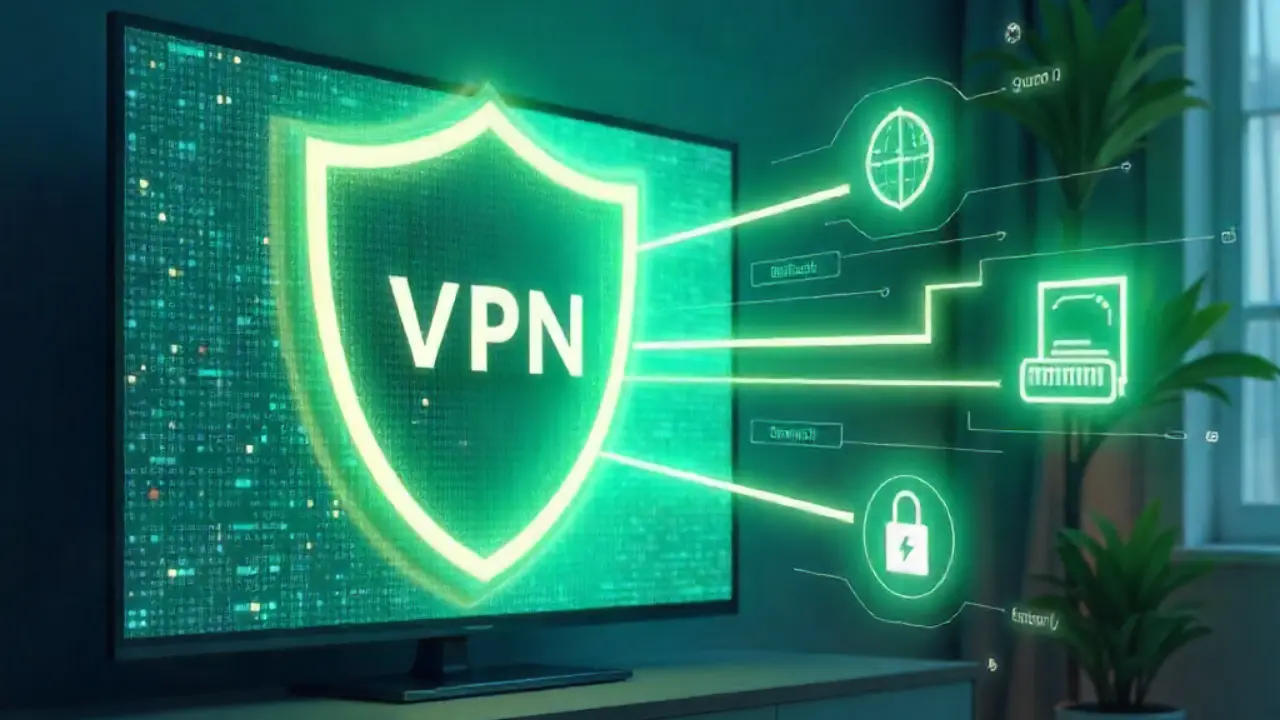
PureVPN makes IPTV streaming better. Its servers are optimized for faster performance and smoother viewing. Enjoy your favorite shows and channels with minimal latency. No delays or buffering! A kill switch and DNS leak protection keep your connection fast and safe. They protect your IP and data. PureVPN provides a secure and dependable way to stream live sports, movies, and shows.
Solving Server Connection and Buffering Challenges
VPN server selection significantly impacts streaming performance and buffering frequency. Test different server locations. This helps you find the best mix of speed and reliability for your IPTV provider.
Some VPN servers get crowded at peak times. This causes slower speeds and more buffering problems. Switch to alternative servers in the same region if you experience performance degradation.
Check your connection speed with and without the VPN. This helps you know what to expect for performance. This data helps you identify when VPN-related issues affect your streaming quality.
Pro Tips / Safety Advice
- Always verify your IPTV provider operates legally and holds proper content licensing
- Use reputable VPN services with strong encryption and no-logging policies
- Regularly update your streaming applications and Kodi addons for security patches
- Track your internet speeds to find patterns of ISP throttling
- Back up your Kodi configurations before making significant changes
- Do not download APK files from unidentified or unreliable sources
- Clear cache and temporary files regularly to maintain optimal performance
Final Thoughts / Encouragement
Fixing IPTV installation issues needs patience and a clear plan. You can quickly fix many issues. This includes network problems, software conflicts, and setup errors, once you see them. Keep up with changing technology, join user communities, and try different setups. This will help you optimize your system for smooth streaming and long-lasting entertainment.
Frequently Asked Questions
- How to download IPTV on Fire Stick? Go to the Amazon Appstore on your Fire Stick, search for your IPTV app, click “Download,” and install it.
- How to install IPTV on Fire Stick 4K?
On your Fire Stick 4K, open the Appstore. Search for your IPTV app. Download it. Then, log in with your provider’s credentials.
- How to set up IPTV on Fire Stick?
Once you install the IPTV app, open it. Then, go to settings. Add your M3U URL or Xtream Codes API from your IPTV provider.
- Can you get IPTV on Fire Stick Lite?
Yes. The Fire Stick Lite supports IPTV apps. Simply download your preferred IPTV app from the Appstore or sideload the APK.
- How to install IPTV Smarters on Fire Stick?
Install the Downloader app from the Amazon Appstore. Then, enter the IPTV Smarters APK URL. Download and install it. Finally, log in with your provider details.
About The Author