
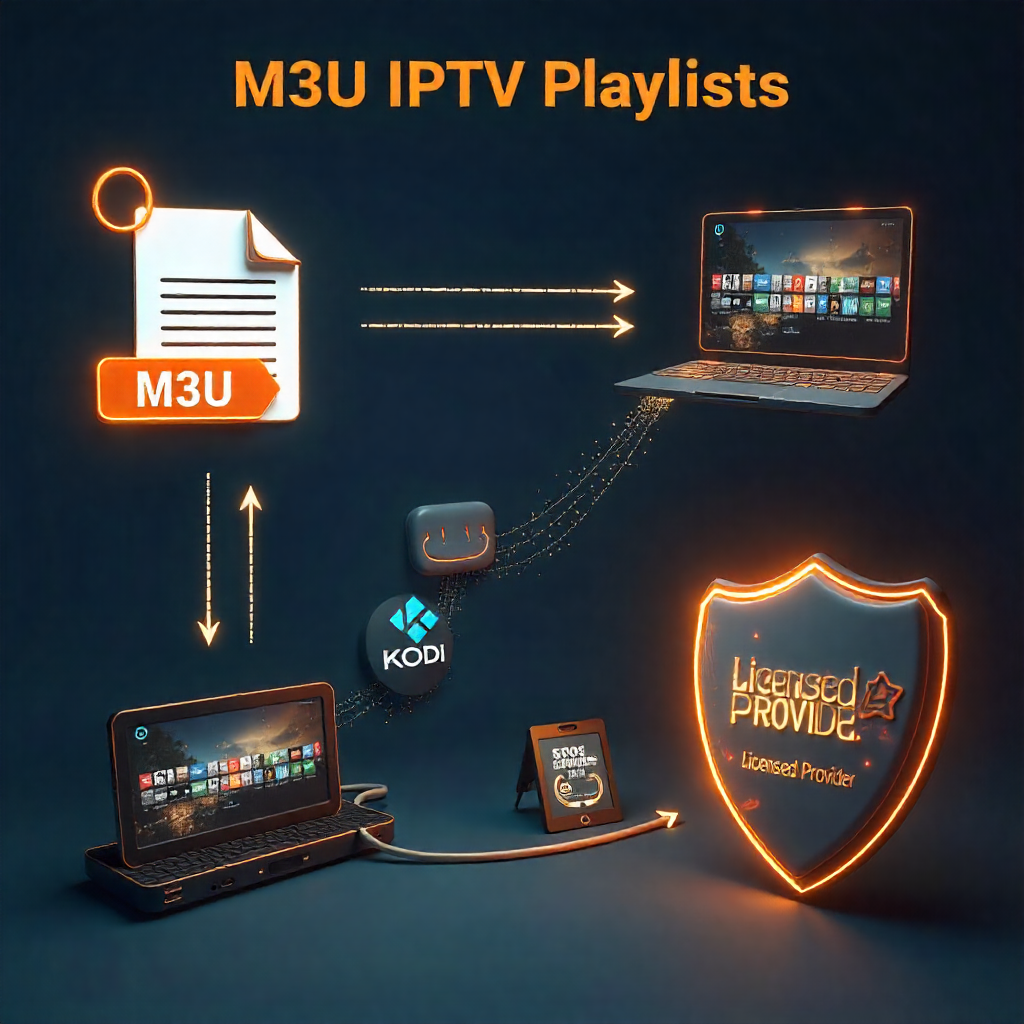
Making M3U playlists for IPTV streaming can enhance how you enjoy live TV and on-demand content. These playlist files link you to thousands of IPTV channels. You can use any compatible media player to access them. This guide shows you exactly how to get started with M3U IPTV playlists on your favorite devices.
M3U IPTV playlists let you stream live TV, movies, and radio by storing channel URLs in a simple text file. They work with popular media players such as VLC, Kodi, and IPTV Smarters. This makes setup quick and flexible. By loading an M3U file into your player, you can instantly access content from your IPTV provider. Choose licensed providers. This ensures quality and legality. It helps you avoid copyright and security issues. M3U playlists are light and easy to customize. They work on many devices, which is why IPTV users around the world love them in 2025.
Understanding M3U and M3U8 File Extensions
M3U playlists act like digital maps. They help your media player find specific video streams and audio files. The M3U format began as a simple MP3 URL playlist. Now, it also works with Internet Protocol Television and HTTP Live Streaming. These playlist files have streaming URLs for different media formats online.
M3U8 files work like regular files, but they use UTF-8 encoding. This makes them great for international IPTV channels that have special characters. Most IPTV apps are compatible with both formats. They can stream live TV and play stored media files. Your local electronics store likely carries streaming devices that support these formats natively.
What Makes IPTV M3U Playlists Special?
IPTV playlists offer several advantages over traditional cable subscriptions:
- Affordable access to thousands of free TV channels across the globe
- Device flexibility across Smart TV, mobile devices, and computers
- Customizable channel lists that match your viewing preferences
- On-demand content availability alongside live broadcasts
- No hardware requirements beyond a stable internet connection
You can greatly improve the user experience by organizing channels your way. M3U streams let you fully control your channel list and when you watch. This is different from cable TV.
Device Compatibility for M3U Playlists
Android Devices
Android smartphones and tablets excel at handling M3U playlists through dedicated IPTV apps. GSE SMART IPTV and IPTV Smarters App offer great user interfaces. They help you manage several playlist files easily. These apps automatically detect your internet connection quality and adjust streaming accordingly.
Most Android devices allow background playlist loading. This helps you switch between IPTV channels fast. The Google Play Store has many free and paid IPTV players. They support different media formats, not just basic M3U streams.
iOS Devices
iPhone and iPad users can get M3U playlists using special apps from the App Store. Apple TV lets you watch on bigger screens. It keeps your playlist features the same. iOS apps usually have simpler interfaces. They also work better with Apple Music and other Apple services.
Apple TextEdit can open M3U files for editing. However, dedicated IPTV apps offer better streaming performance. The closed iOS system offers stable playback. However, it has fewer customization options than Android.
PC and Mac Setups
Windows and Mac computers offer the most flexibility for M3U playlist management. The best option for desktop IPTV streaming is VLC Media Player. It supports almost all media formats and streaming protocols. Windows Media Player has basic M3U support. However, VLC performs better for live TV streaming.
Mac users benefit from the smooth switch between desktop and mobile playlist files. Edit M3U playlists with any text editor. Then, sync them on all your Apple devices. This way, you can easily access your favorite IPTV channels anytime.
Popular Platforms for Streaming M3U Playlists
VLC Media Player
VLC Player is the best choice for streaming M3U playlists on any platform. This free media player plays video files, audio files, and live streams. It doesn’t need extra codecs. The interface remains consistent whether you’re using Windows, Mac, or Linux systems.
Advanced users appreciate VLC’s network streaming capabilities and support for various streaming URLs. The player handles buffering issues on its own. It also shows clear details about your internet connection quality while you watch.
IPTV Smarters App
The IPTV Smarters App is intended for users of IPTV playlists. It offers features like DVR functionality and electronic program guides. The app sorts your channels into categories. This makes it easier to find what you want compared to regular cable interfaces. Built-in parental controls help manage content access for family viewing.
The channels tab displays logos and guide item art for a professional appearance. Multiple playlists let you switch between IPTV service providers. You won’t lose your custom settings.
KODI Media Player
KODI turns any device into a full entertainment center. It supports a wide range of M3U playlists. The platform’s library types accommodate both live TV streaming and local content storage. Add-ons boost your IPTV experience. They add weather, news, and gaming features.
KODI’s customizable interface adapts to your viewing habits and preferences. Advanced users can modify almost every part of the user experience. They do this through plugins made by the community.
How Do You Install These Platforms?
Installing VLC for M3U Playback
- Get VLC for your operating system from the official website
- Install the application following standard procedures for your platform
- Open VLC and navigate to the Media menu
- After choosing “Open Network Stream,” enter the URL of your M3U playlist.
- Save the playlist locally for offline access and faster loading
VLC automatically detects most streaming formats and begins playback within seconds. The player keeps a history of recent playlists. This helps users quickly access their favorite IPTV channels.
Setting Up IPTV Smarters with M3U
The IPTV Smarters setup process focuses on user-friendly configuration:
- Download the app from your device’s official app store
- Launch the application and select “Add New User”
- Choose “Load Your Playlist or File/URL” option
- Upload a local file or enter the URL of your M3U playlist
- Configure your preferred settings and channel organization
The app automatically tests your internet connection and suggests optimal streaming quality settings. Playlist loading typically completes within minutes, depending on the number of available channels.
Configuring KODI with M3U Files
KODI configuration requires slightly more technical knowledge but offers greater customization:
- Install KODI via the app store or the official website.
- Navigate to Add-ons from the main menu
- Choose “Install from repository” and locate the PVR IPTV Simple Client.
- Configure the add-on with your M3U playlist URL
- Enable Live TV in KODI’s interface settings
KODI’s library parsing creates a comprehensive database of your available content. The system indexes channels, shows, and movies for advanced search and recommendation features.
Creating Custom M3U Playlists with #EXTM3U
The #EXTM3U header is the first step in creating a custom playlist. This header shows the file format. Each entry in your playlist file needs a streaming URL. You can also add metadata for channel names and logos. Text editors like Notepad++ or Apple TextEdit work perfectly for basic playlist editing.
The format is simple:
- Start with #EXTM3U.
- Add channel info using #EXTINF.
- Put the streaming URL on the next line.
You can sort channels by category, add logos, and include EPG info for program guides. Some users create different playlists for types of content. These include sports, news, and international shows.
Common Issues and Troubleshooting
Playlist Loading Problems
Playlist loading failures often stem from incorrect URLs or server connectivity issues. Test your M3U playlist URL in a web browser first to make sure it stays active. Some IPTV service providers rotate URLs regularly, requiring playlist updates to maintain access.
Network firewall settings sometimes block IPTV streams, particularly in corporate or educational environments. Check your router settings. If GeoIP blocking stops you from accessing some channels, consider using a VPN.
Resolving Buffering and Lag
Buffering issues typically relate to insufficient internet connection bandwidth or server overload. Check your connection speed. Make sure it meets the needs for High Definition streaming. Lower quality settings often resolve playback problems while maintaining acceptable viewing quality.
Server-side issues impact all users at once. This means we need to be patient as providers work to fix the problems. Use alternative channels or backup playlists during busy hours. Popular streams often face heavy traffic then.
Finding Trusted Sources for IPTV Links
Trusted IPTV providers give you dependable M3U playlists. They also offer customer support and regular updates. Stay away from suspicious sites that offer “free premium channels.” They often have malware or illegal content. Research provider reviews and verify their legitimacy before sharing payment information.
Trial periods and clear pricing structures are common features of legal IPTV services. Some providers focus on certain regions or types of content. So, pick services that fit your viewing habits and where you are located.
Customizing Channels and Playlists
Channel customization enhances your viewing experience through personalized organization and branding. Many IPTV apps let you make custom categories. You can hide channels you don’t want and reorganize your list of channels to your preferences. Advanced users can add custom channel logos. They can also modify EPG information. This helps create a better visual presentation.
Playlist management tools organize M3U files for different uses or family members. Make separate playlists for kids’ shows, international channels, or premium subscriptions. This helps keep your entertainment organized and easy to access.
Best Practices for Optimal Streaming Experience
Optimal IPTV streaming requires attention to both technical and content management aspects:
- Maintain a stable internet connection with adequate bandwidth
- Update playlist files regularly to ensure channel availability
- Use wired connections when possible for consistent performance
- Keep backup playlists from multiple providers for redundancy
- Monitor data usage if streaming on mobile networks
Regularly maintaining your IPTV setup helps avoid common issues. It also keeps everything running smoothly. Regularly update your media player software. Clear cache files to keep your devices running well.
Top-Rated IPTV Apps for Enhanced Streaming
Beyond the popular options already discussed, several specialized IPTV apps deserve consideration. Perfect Player provides advanced EPG integration. Its sleek interfaces are made for Smart TV viewing. TiviMate offers great features. It supports multiple playlists and has advanced recording options. This is perfect for serious IPTV fans.
Mobile apps like GSE SMART IPTV are perfect for touchscreen use. They also manage offline playlists well. To find the right IPTV app for your M3U playlists, think about the device you use most and the features you need.
Your Next Steps for IPTV Success
Using M3U playlists for IPTV streaming creates many exciting entertainment options. Begin with a dependable media player like VLC to check basic features. Then, as your needs increase, try specialized IPTV apps. Remember that legal content sources provide the best long-term value and viewing experience.
Organize your playlists carefully. Additionally, have backup plans on hand for continuous amusement. M3U playlists are flexible. This means you can easily adjust your setup when new services and technologies come out.
Frequently Asked Questions
- Where can I find high-quality M3U playlists?
You can get them from licensed IPTV providers or reliable free playlist sites that offer legal streaming links. - What is the best M3U playlist player?
Popular choices are VLC Media Player, IPTV Smarters, and TiviMate. They offer smooth playback and EPG support. - How to create an M3U playlist for IPTV free?
Use a text editor to list stream URLs in M3U format, then save the file with a .m3u extension. - What is the difference between M3U and M3U8 playlists?
M3U is a standard playlist format, while M3U8 is UTF-8 encoded and often used for HTTP live streaming. - Can VLC play M3U playlists?
Yes, VLC can open and play M3U playlists on both desktop and mobile devices.
About The Author