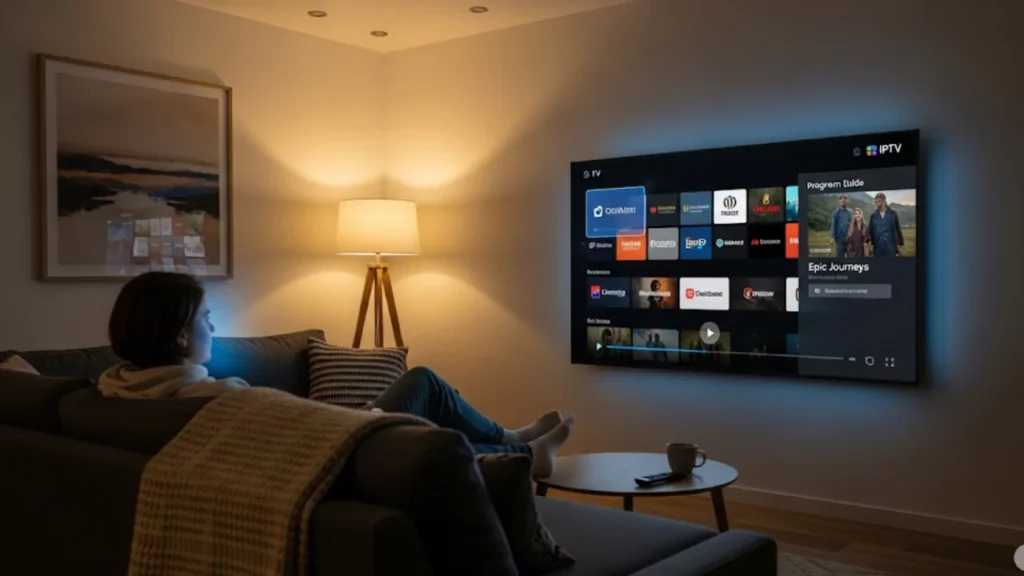
It’s now simpler to watch live TV channels on your Apple TV. With IPTV on TV, you can enjoy thousands of channels and on-demand shows right from your living room.
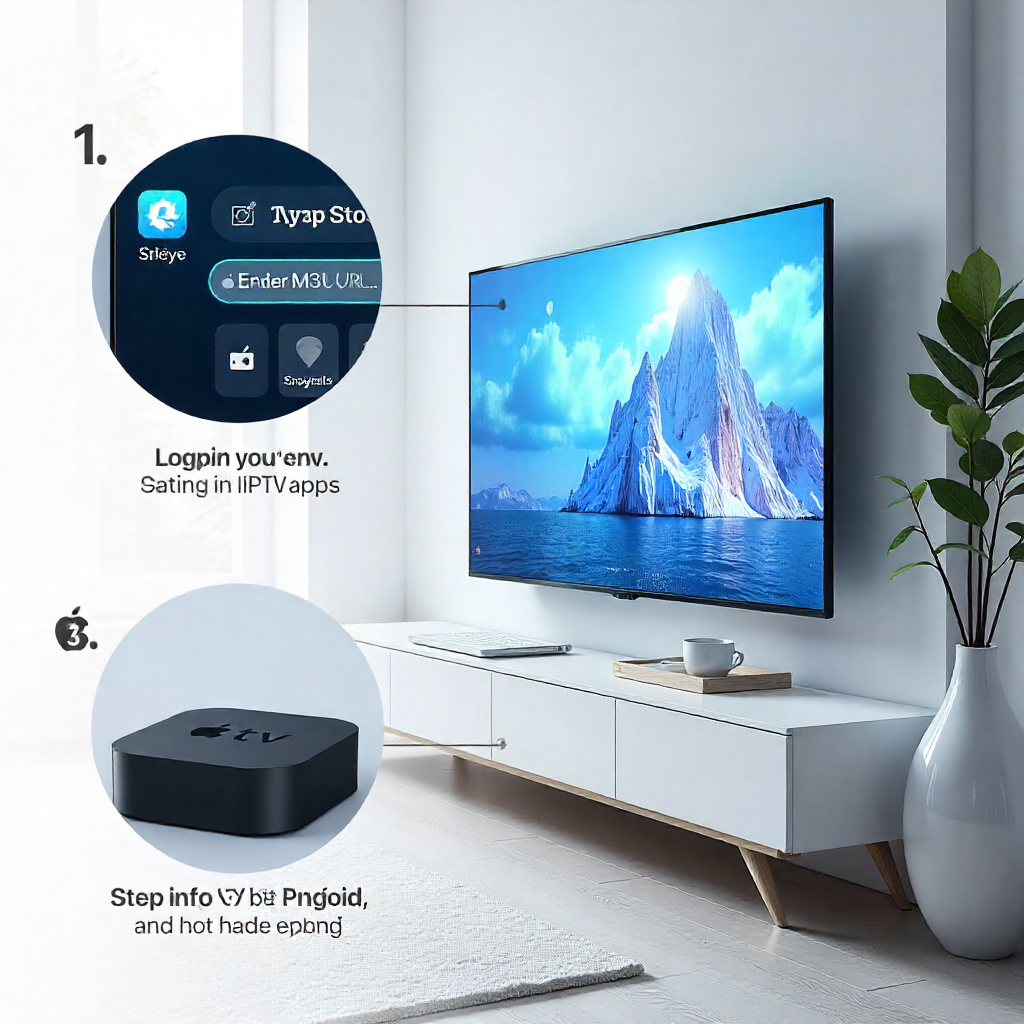
Setting up IPTV on Apple TV is quick with apps like IPTV Smarters or GSE Smart IPTV. Just download the app from the App Store. Then, enter your M3U URL or log in with your IPTV provider. After that, you can start streaming live TV, movies, and on-demand shows. To ensure smooth performance, use a licensed provider. Also, make sure you have a stable internet connection and keep your playlist updated. This method provides a budget-friendly, top-notch streaming experience in 2025. It works well with Apple’s ecosystem and is both legal and secure.
Understanding IPTV and Its Benefits
IPTV sends TV content using internet protocols. This is different from cable or satellite methods. Your Apple device links to an IPTV service. Movies, TV series, and TV channels are all streamed live to your screen. This technology works well with streaming devices like Apple TV, Fire TV Stick, and Android TV.
The main advantage lies in accessing global content libraries without geographic restrictions. Many IPTV services provide thousands of channels. They also offer catch-up TV features and premium on-demand content. Plus, their prices are competitive with traditional cable subscriptions.
What Are the Main IPTV Types?
IPTV services fall into three primary categories that cater to different viewing preferences. Live TV offers real-time broadcasts like regular channels. Video-on-demand lets you watch movies and shows anytime you want.
- Real-time broadcasts from news, sports, and entertainment channels are streamed by Live IPTV
- Video-on-Demand (VOD): Offers movies and TV series for instant viewing
- Time-shifted TV: Provides catch-up TV functionality for recently aired programs
- Hybrid Services: Combines all three types for comprehensive entertainment packages
Pros and Cons of IPTV
IPTV technology brings significant advantages to modern streaming experiences. Cost-effectiveness is the main advantage. Many services provide large channel lineups for much less than traditional cable. Your streaming experience is more flexible. You can pause, rewind, and record anytime.
However, IPTV depends entirely on stable internet connections. Buffering can ruin your viewing experience. This often happens during busy times or when internet speeds are slow. Some IPTV providers work in legal gray areas. This raises content licensing issues for careful users.
Preparing Your Apple TV for Installation
Before installing any IPTV apps, make sure that tvOS 12 or later is installed on your Apple TV. This ensures the best compatibility. Check your internet connection speed, as streaming quality depends heavily on bandwidth availability. Most IPTV services recommend minimum speeds of 25 Mbps for 4K content on Apple TV 4K devices.
Update your Apple device through Settings > System > Software Updates. To access the App Store, sign into your Apple Account. Then, you can download IPTV apps. Check your local internet provider’s data caps. Streaming uses a lot of bandwidth each month.
How Do You Choose IPTV Apps?
Selecting the right IPTV app determines your entire streaming experience quality. Apps such as IPTV Smarters Player, GSE Smart IPTV, and Televizo IPTV Player come with a range of features and styles. Consider your technical expertise level when choosing between basic and advanced media players.
- Research compatibility: Ensure apps work with your Apple TV model and tvOS version
- Check feature sets: Look for M3U playlist support, Xtream Codes API compatibility, and parental controls
- Read user reviews: Browse Apple App Store ratings and community feedback
- Test free versions: Many apps offer lite versions before purchasing premium features
Popular IPTV Apps: IPTV Smarters, Televizo, Swiptv
IPTV Smarters is one of the most flexible IPTV players for Apple devices. The app works with many playlist formats. It has electronic program guides and is great for smart TVs and streaming platforms.
Televizo offers a simple user interface. It supports M3U URLs and streams well. Also, Flex IPTV offers advanced users options for customization and detailed streaming analytics. Every application adds special advantages to your IPTV configuration.
Downloading IPTV Apps from the App Store
Navigate to the Apple App Store on your Apple TV using the remote control. Use the on-screen keyboard or voice search to find your IPTV app. Top picks are GSE Smart IPTV, Smarters Player Lite, and other trusted media players.
- Install apps directly through your Apple Account
- Check app ratings and recent reviews before downloading
- Verify developer credentials for security purposes
- Note any in-app purchase requirements for premium features
Read app descriptions carefully to understand supported playlist formats and streaming protocols. Some applications require separate IPTV subscriptions from legitimate providers to access content legally.
Sideloading IPTV Apps: A Guide for Advanced Users
Advanced users can sideload apps that aren’t on official channels. However, this needs some technical know-how and extra software. This process uses tools like Xcode or other installers to get around Apple App Store limits.
Sideloading carries security risks and may void warranties on Apple devices. Try this method only if you know the risks and legal duties of unofficial app installations.
Setting Up M3U Playlists
M3U playlists have channel details and streaming URLs. IPTV apps use these to access content. Your IPTV provider usually gives you these playlist files. They also provide login credentials for access. Save playlist URLs or download M3U files to your device for easy configuration.
- Obtain M3U URLs: Request playlist links from your legitimate IPTV subscription service
- Save credentials: Store usernames, passwords, and server information securely
- Backup playlists: Keep copies of working configurations for future use
Configuring Your IPTV App
Launch your chosen IPTV application and navigate to settings or playlist management sections. Enter your M3U playlist URL or upload files from your device using the app. For authentication, enter the login information that your IPTV service has sent you.
Adjust streaming quality settings to match your internet speed and data use choices. Many apps let you adjust quality automatically. This helps avoid buffering when the network is busy.
Using a VPN for Privacy and Access
Virtual Private Networks (VPNs) boost your privacy. Additionally, they can assist you in accessing IPTV service’s geo-restricted content. Install trusted VPN apps on your Apple TV. You can also set up a network-level VPN through your router settings.
Choose VPN servers with high-speed connections to minimize impact on streaming quality. Some IPTV providers suggest certain VPN services. This helps ensure better compatibility with their streaming systems.
Can You Install IPTV Step-by-Step?
Complete IPTV installation follows a systematic approach ensuring reliable performance. First, download your favorite IPTV app from the Apple App Store. Then, get all the credentials you need from your IPTV provider before you start setting it up.
- Install and download: Choose the IPTV app from the App Store.
- Launch application: Open app and navigate to settings
- Add playlist: Input M3U URLs or upload playlist files
- Configure credentials: Enter username, password, and server details
- Test streaming: Verify channels load properly and adjust quality settings
Save your configuration settings and create backups for future reinstallation needs. Test different channels to ensure stable streaming performance across various content types.
Optimizing Streaming Quality
Streaming quality optimization helps avoid buffering. It also guarantees smooth playback, especially during peak viewing hours. Adjust video resolution settings to fit your internet speed and Apple TV model.
- Monitor bandwidth usage: Track data consumption during streaming sessions
- Adjust buffer settings: Increase buffer sizes for unstable connections
- Update apps regularly: Install latest versions for performance improvements
- Close background apps: Free system resources for better streaming performance
Configure automatic quality adjustment features to maintain consistent playback during network fluctuations. Upgrade your internet speed if you have streaming problems on several devices.
Troubleshooting Common Issues
IPTV applications may encounter various technical challenges requiring systematic troubleshooting approaches. Connection timeouts usually mean there are network problems or wrong server settings in your IPTV setup.
Fixing Buffering Problems
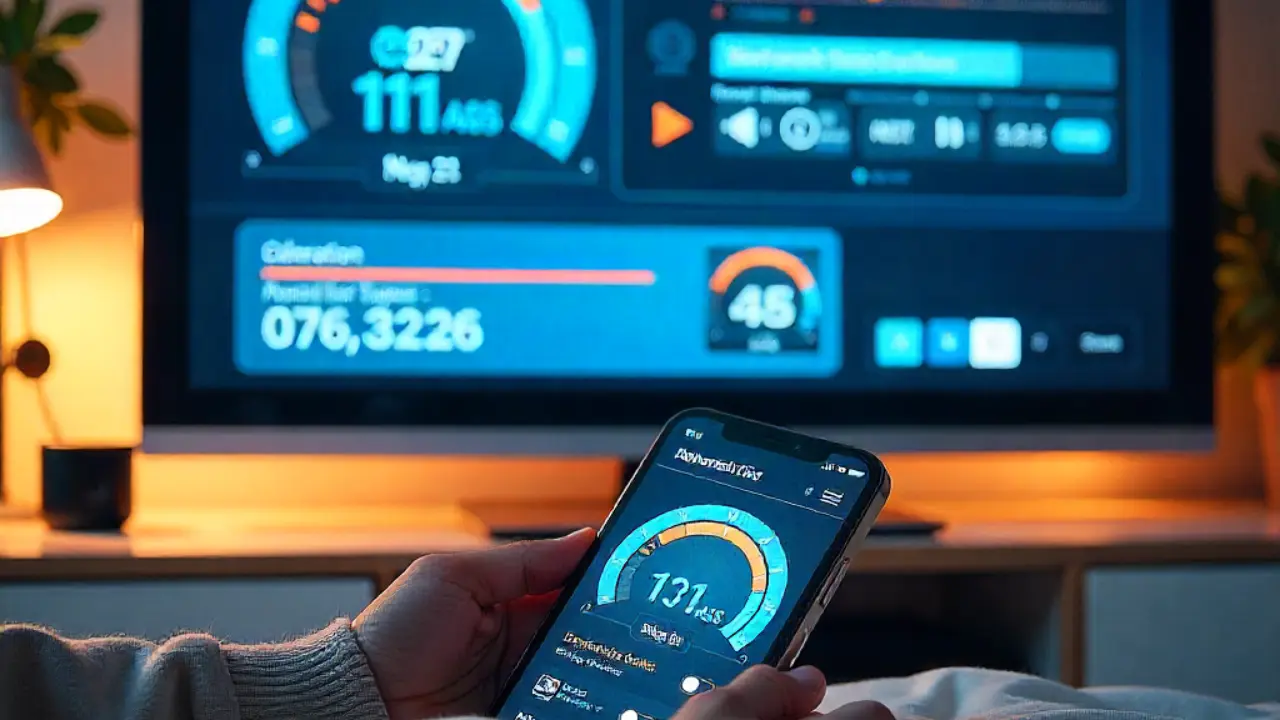
Buffering issues typically stem from insufficient internet bandwidth or overloaded IPTV servers. Test your connection speed using Apple TV’s network diagnostics. You can also try external speed testing apps.
Reduce video quality settings temporarily to determine if bandwidth limitations cause buffering. If throttling is slowing your streaming when it’s busy, talk to your internet provider.
Resolving App Crashes
Application crashes can occur for several reasons:
- Corrupted playlist files
- Low device memory
- Issues with tvOS versions
These factors can lead to unexpected app shutdowns.
Restart your Apple TV completely and clear app cache data through system settings.
Reinstall problematic IPTV applications after removing all associated data and configuration files. Update to the latest tvOS version if you still have problems with new app versions.
Enhancing Your IPTV Experience
Improve your IPTV setup with additional features and accessories. This will boost usability and convenience. Think about universal remote controls. They can combine IPTV apps with other streaming services. This makes navigation easy and smooth.
Set up parental controls in IPTV apps. This helps you manage what your family can watch. Make custom channel lists. Organize your favorite shows for easy access during daily viewing.
What About Content Licensing Concerns?
Content licensing represents a critical consideration when selecting IPTV providers and services. Legitimate IPTV services have the right licenses and distribution deals for their content.
- Research provider credentials: Verify business registration and licensing information
- Avoid suspicious pricing: Extremely low prices often indicate unlicensed content
- Check content sources: Legitimate services provide clear information about content origins
- Understand legal risks: Unlicensed IPTV usage may violate copyright laws in your jurisdiction
Choose established IPTV providers with transparent business practices and proper content licensing agreements. Support legitimate streaming services that compensate content creators and rights holders appropriately.
Final Thoughts on IPTV Usage and Maintenance
IPTV technology makes Apple TV a full entertainment hub with legal services. Regular maintenance helps keep your streaming experience smooth. This includes app updates, playlist refreshes, and system optimization.
Keep in mind, for IPTV services to be legal, they need active subscriptions and proper content licenses. Choose trusted providers. Look for those with good customer support, regular updates, and a wide range of content to fit your entertainment needs.
Additional Resources and Support
Access manufacturer support pages for technical assistance with Apple TV configuration and troubleshooting. Many IPTV providers have forums and support teams. They help users improve their streaming setups.
Join user communities discussing IPTV applications and streaming optimization techniques. These resources provide useful tips from users with similar tech problems. They focus on Apple devices and streaming setups.
Frequently Asked Questions
- What is Smart IPTV and how does it work?
Smart IPTV is an app that lets you stream live TV channels over the internet using IPTV playlists (like M3U). You upload your playlist to the app, and it streams channels directly to your device. - How to install Smart IPTV on a Smart TV?
Go to your Smart TV’s app store, search for “Smart IPTV,” download and install it. Then, follow on-screen instructions to activate and upload your playlist. - Is Smart IPTV free or paid?
Smart IPTV offers a short free trial, but after that, you must pay a one-time activation fee to keep using it. - How to add channels to Smart IPTV?
Visit the Smart IPTV website, enter your device’s MAC address, and upload your M3U or TXT playlist. Restart the app to see the new channels. - Is Smart IPTV legal to use?
The app is legal. However, streaming copyrighted content without permission might be illegal in your country. Always use licensed sources.
About The Author