Starting with IPTV Smarters Pro on different devices may seem hard, but it’s easy once you learn the steps. Installing this robust media player is explained in this guide. You can set it up on major platforms like Fire TV Stick and Samsung Smart TV.
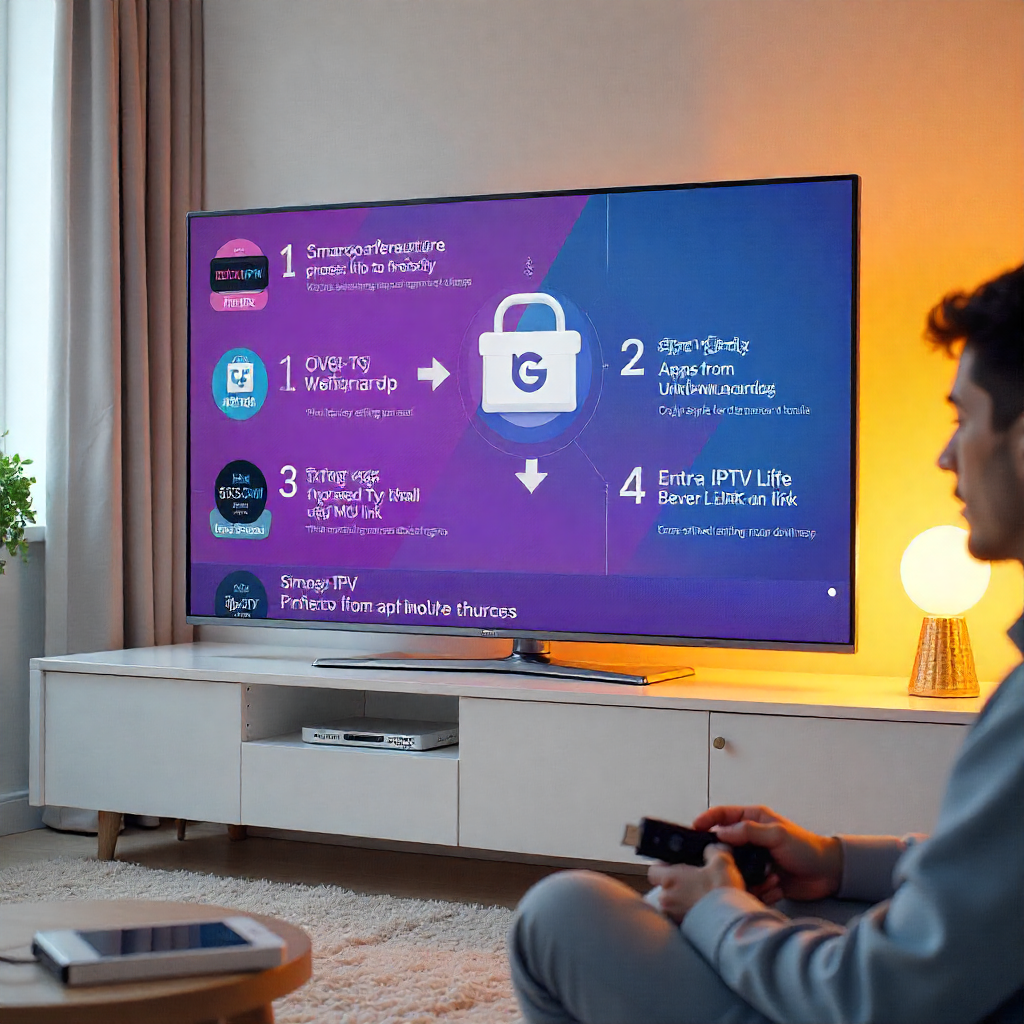
Installing IPTV Smarters Pro on your Firestick is easy. First, download the Downloader app. Then, enable “Apps from Unknown Sources.” Next, install the APK. Finally, add your IPTV playlist or M3U link. This guide shows you how to set up, activate, manage playlists, and quickly fix common issues. To stream better and access restricted channels, use a legal IPTV provider and a reliable VPN.
Understanding IPTV Smarters Pro Compatibility
IPTV Smarters Pro stands out among media players for its exceptional cross-platform support. This IPTV app changes how you enjoy live TV, on-demand shows, and streaming services. Now, you can enjoy it on all your devices.
Compatible Devices Overview
The application supports an impressive range of streaming devices and platforms:
- Amazon Fire TV and Fire TV Stick – Most popular choice for cord-cutters
- Android devices – Smartphones, tablets, and Android TV boxes including Nvidia Shield
- iOS devices – iPads and iPhones via the Apple App Store
- Samsung Smart TV -Direct setup via Smart Hub
- LG Smart TV – accessible through the Content Store
- Android TV – Google Play Store installation for set-top boxes
Operating System Requirements
Each platform has specific requirements for optimal performance. Android devices need version 5.0 or higher, while iOS requires version 12.0 minimum. Smart TVs from 2018 onwards typically support the application without issues. Your internet connection should provide at least 10 Mbps for HD content and 25 Mbps for 4K support.
What Should I Prepare Before Installation?
Before diving into the installation process, gather the necessary tools and credentials. Your IPTV provider should give you M3U URL links, M3U playlists, or Xtream Codes API info.
Enabling Installation from Unknown Sources
For Android devices and Fire TV, turn on installation from unknown sources. Go to your device settings. Look for the security or applications section. Then, turn this option on. You can install the APK file directly instead of using official app stores.
Don’t worry – this is a standard procedure for many streaming applications. After installing this setting, remember to turn it off. It’s important for security, especially if kids use the device.
Tools Required for Installation
The installation process requires different tools depending on your chosen platform:
- Downloader app – Essential for Fire TV Stick installations
- File manager – Helpful for organizing APK files on Android devices
- Stable Wi-Fi signal – Critical for downloading and streaming content
- IPTV subscription credentials from your service provider
Installing IPTV Smarters Pro on FireStick
Amazon Fire TV devices need sideloading. This is because IPTV Smarters isn’t available in the Amazon App Store. The process involves using the Downloader app as an intermediary.
Using the Downloader App
Install the Downloader app from the Amazon App Store on your Fire TV Stick. Open the app and enter the Pro Apk URL from a trusted source like TROY. The app will download the APK file. When the download is finished, you will be asked to install it. Simply accept and wait 30-60 seconds for the installation to finish.
Setting Up via Developer Options
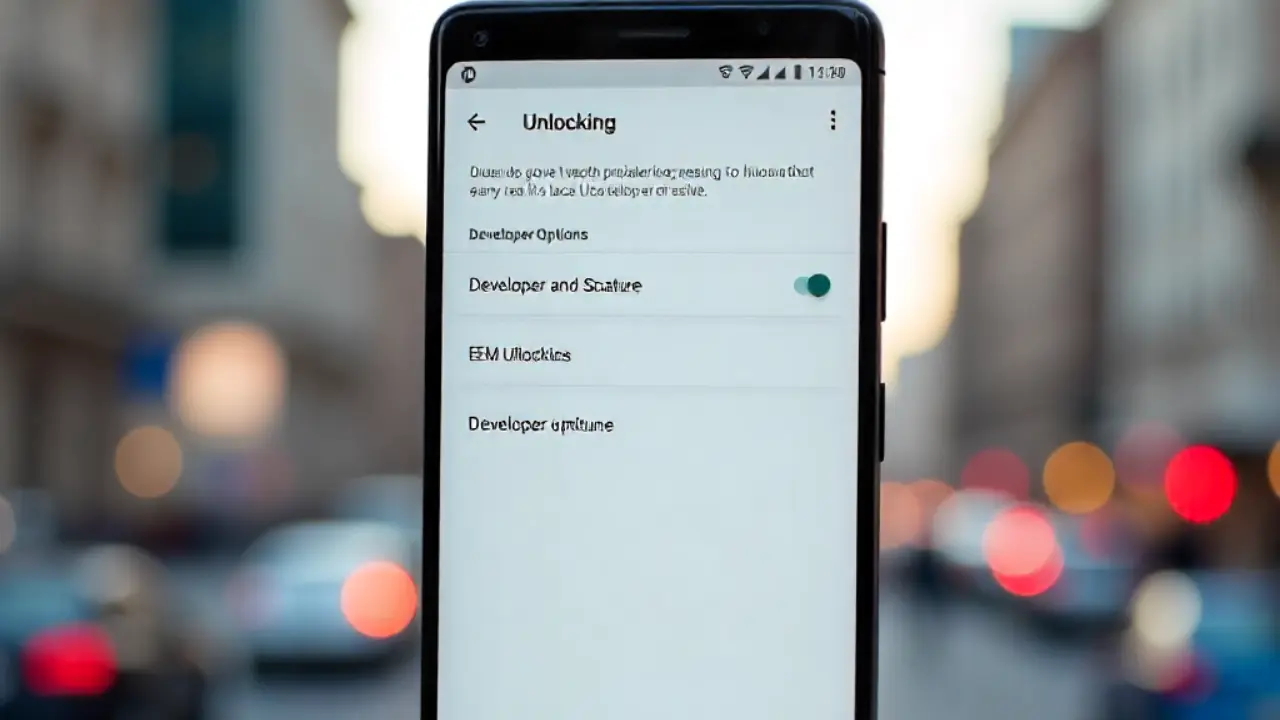
Alternative installation methods involve enabling developer options in your Fire TV settings. Select Developer Options after going to Settings and then My Fire TV. Allow apps from unknown sources and enable ADB debugging. You have more control over the installation process when you use this method.
Some users like this method for installing many streaming apps. They may do this at their local electronics store or when helping friends with their devices.
How Do I Install on Android?
Android installation is flexible. You can pick from Google Play Store alternatives or install APKs directly. The process varies slightly between Android TV boxes and mobile devices.
Downloading and Installing the APK
To install IPTV Smarters Pro, first download the APK file from a trusted source. Then, use your device’s file manager to find it. Finally, follow the installation steps on your Android device. The Google Play Store is accessible to Android TV users. Availability may vary by region. If the full version isn’t accessible, Smarters Player Lite is a useful alternative.
Allowing Permissions for Installation
The app requires several permissions to function properly:
- Storage access for local playlists and EPG data
- Network access for streaming live channels
- Device administrator permissions for parental controls
- External player support for apps like MX Player or VLC Player
Grant these permissions during installation to ensure full functionality. You can always modify these settings later through your device’s application manager.
Setting Up on iOS Devices
Installing on iOS is simple. The Apple App Store offers IPTV Smarters Pro. To get started, simply search for the app in the store and download it directly to your device. Remember, you need a valid Apple ID to access the store. Also, make sure your device has enough storage space for the installation. Once installed, the app provides a seamless experience for accessing your IPTV content.
Accessing the App Store
Using your iPhone or iPad, look up “IPTV Smarters Pro” in the Apple App Store. The official app appears with the developer’s verified badge. Avoid similar-named applications that might not offer the same feature set.
The download size is about 45MB. This makes it good for devices with limited storage. Installation typically completes within minutes over a standard Wi-Fi connection.
Completing the Installation Process
Once installed, the app icon appears on your home screen, ready to launch with a setup wizard. iOS users enjoy automatic updates and better security. They like features like the Electronic Program Guide, Catch-up TV, and streaming on Apple devices.
Installing on Samsung Smart TV
IPTV Smarters Pro is easy to install on Samsung Smart TVs. Just use the built-in app store. It’s easy and fast! Using the official app store on the TV ensures full compatibility. Users also get automatic updates that help the app run smoothly. This removes the need for manual installs. It also guarantees access to the latest features and updates.
Navigating the Smart Hub
Press the Smart Hub button on your Samsung remote control to bring up the Apps section. Use the search function to locate IPTV Smarters Pro. The app appears in the entertainment category alongside other streaming platforms.
Some older Samsung models might not support the latest version. Check your TV’s manufacturing year and software version before proceeding with installation.
Downloading Through TV Apps
Select the IPTV Smarters Pro app and press the Install button. The download begins automatically and displays progress on your screen. Installation usually takes 2 to 3 minutes. It depends on your internet speed and how quickly your TV processes the setup.
Once installed, the app appears in your Smart Hub’s app list for easy access. Add it to your favorites bar. This way, you can launch it quickly during your evening streaming.
Installing on LG Smart TV
Installing an LG Smart TV is like setting up other smart TVs. It uses the webOS platform’s Content Store to download and manage apps. It does not use Samsung’s ecosystem. The webOS interface is user-friendly. It lets users navigate apps, settings, and features easily. Everyone can personalize their viewing experience in this way.
Accessing the Content Store
Use your Magic Remote. Go to the LG Content Store. Then, search for IPTV apps in the entertainment section. If IPTV Smarters Pro isn’t an option, try alternatives like Smart IPTV. You can also check other compatible media players that provide similar streaming features.
Completing the Installation
Install the IPTV app of your choice by following the on-screen instructions. LG’s webOS system installs the app for you. It adds it to your home screen ribbon.
Launch the app to test the installation. Make sure it loads properly. Then, you can proceed to the configuration steps.
What Credentials Do I Need Setup?
After installing the service on your devices, the next step is configuration. This includes setting your preferences, adjusting settings, and syncing your devices. Proper setup ensures optimal streaming, seamless playback, and access to all features. Setting things up right will boost your viewing experience and maximize your subscription.
Inputting IPTV Credentials
Open IPTV Smarters Pro, then choose your favorite login option. Most IPTV services provide either M3U link options or Xtream Codes API credentials. Enter the data precisely as provided by your service provider. This will help you avoid connection errors.
The app supports multiple accounts. You can easily switch between different IPTV providers or family member accounts. This feature proves valuable for households with varied viewing preferences.
Optimizing App Settings
Navigate to the settings menu to customize your streaming experience:
- Video quality – Set default resolution based on your internet speed
- Parental controls – Limit access to particular categories of content
- EPG Integration – Enable Electronic Program Guide for better channel navigation
- DVR Functionality – Configure recording preferences if your service supports it
Adjust buffer settings if you experience frequent interruptions. Higher buffer values improve stability but may increase initial loading times.
Enhancing Performance with a VPN
VPN integration boosts your IPTV streaming. It fixes common problems, like ISP throttling. This slows your connection when traffic is high. It also lets you get around geo-restrictions. This way, you can watch shows and channels not available in your area. Using a VPN gives you a smoother, safer, and hassle-free streaming experience.
Benefits of Using PIA
IPTV users benefit greatly from Private Internet Access (PIA). It offers servers that optimize streaming. You get minimal speed loss, better connection stability, and access to geo-restricted content. The service comes with a money-back guarantee. This way, you can find the best server locations for your needs without any risk.
Setting Up a VPN with IPTV Smarters Pro
Install your chosen VPN application before launching IPTV Smarters Pro. Connect to a server location that provides the best streaming performance. Some users like to connect via a VPN router. This way, they can protect all their streaming devices at once.
Try different server locations to find the best performance for your IPTV service. Document the best-performing servers for future reference.
How Can I Fix Common Problems?
- Even with proper installation, occasional streaming issues may occur.
- Understanding basic troubleshooting can help resolve these issues.
- Troubleshooting ensures consistent performance across all your devices.
Fixing Buffering Problems
Slow internet or network congestion are common causes of buffering.
Test your connection speed. If it’s good but you still have issues, try these steps:
- Use an Ethernet cable instead of Wi-Fi.
- Clear your app cache.
- Restart your streaming device regularly.
For homes with many users, think about a plan with 50+ Mbps. This will ensure smooth and uninterrupted service.
Pro Tips / Safety Advice
- Download applications only from verified sources to avoid malware or compromised versions.
- Keep your IPTV credentials secure and never share them with unauthorized users.
- Regularly update the app to access new features and security patches.
Final Thoughts / Encouragement
Install IPTV Smarters Pro on various devices. This lets you watch live TV, on-demand content, and Time-shifted TV. View your preferred television series and films at any time and from any location. Use the Fire TV Stick for easy portability. Smart TVs offer a big-screen experience. Android devices let you customize your settings.
The app enhances your viewing experience. It offers features like an EPG, parental controls, and support for external players. This ensures smooth playback. IPTV Smarters Pro lets you watch live sports, favorite shows, and on-demand content. You can stream easily on any device.
Frequently Asked Questions
- Which IPTV app has multi-view?
Apps like TiviMate and IPTV Smarters let you watch multiple channels at the same time. - Which streaming service has multiple screens?
Many IPTV services and OTT platforms offer multi-screen options. These include Netflix, Hulu, and Prime Video. - Can multiple users use IPTV?
Yes, if the IPTV provider supports multiple connections in one subscription. - What is simultaneous use of IPTV?
It’s the ability to stream IPTV content on multiple devices at the same time. - What apps support multi-view?
TiviMate, IPTV Smarters, and Perfect Player are popular apps that offer multi-view features.
About The Author