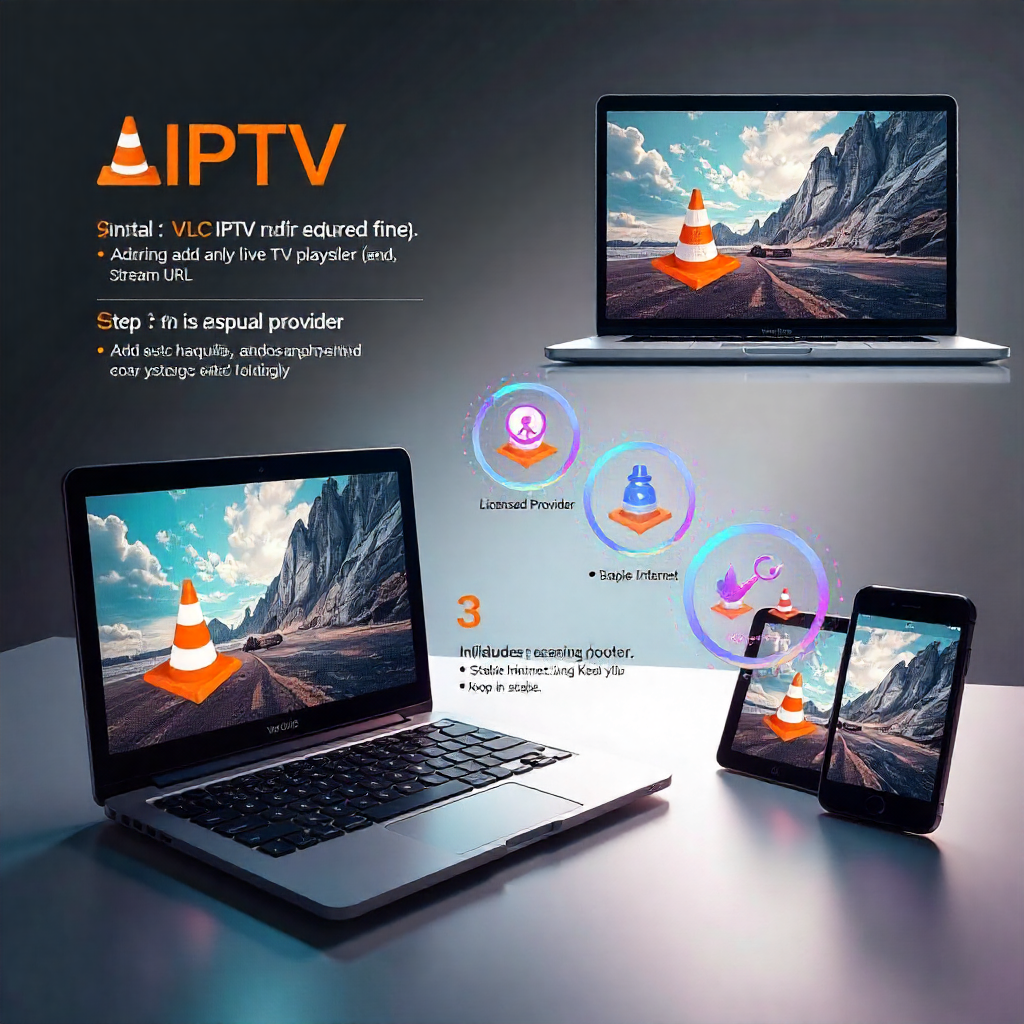
VLC Media Player is a versatile and easy tool for streaming IPTV channels and live TV. It supports many file formats and streaming protocols. That’s why millions love it. You can enjoy your favorite shows, live sports, and international channels with VLC. This guide will help you turn VLC into a great IPTV player streaming platform. Enjoy a smooth viewing experience!
Watching IPTV on VLC Media Player is easy and works on Windows, Mac, Android, and iOS. Install VLC, then add your IPTV provider’s M3U playlist or stream URL. After that, start streaming live TV, movies, and on-demand shows. For smooth playback, use a licensed provider, stable internet, and keep VLC updated. This setup provides a budget-friendly, legal, and high-quality streaming experience in 2025. It works well on all devices.
What Makes VLC Perfect for IPTV?
Overview of VLC’s Features
VLC Media Player is a free and open-source tool. It supports almost all media file formats. Its strong design manages streaming protocols well. This makes it ideal for Internet Protocol Television services. The user interface is still simple to use on Linux, macOS, Windows, and mobile devices.
The software supports many media formats. This means you won’t have compatibility issues with various IPTV playlist formats. VLC handles M3U files, M3U playlist URLs, and streaming media formats easily. You don’t need to install extra codecs.
Benefits of Using VLC for IPTV
VLC offers several advantages over dedicated IPTV applications:
- Universal compatibility across desktop operating systems and mobile devices
- Zero cost with no subscription fees or premium features locked behind paywalls
- Excellent network caching options that minimize buffering issues during live programs
- Built-in streaming media server capabilities for sharing content across your local network
What Do You Need Before Starting?
Required Hardware and Software
You need a stable internet connection. It should have enough bandwidth to stream IPTV channels smoothly. Most IPTV services recommend at least 10 Mbps for HD content and 25 Mbps for 4K streaming.
Connect a computer to your TV or use a compatible Android TV device to integrate with your smart TV. Android boxes are great for living rooms. On the other hand, Windows 10 Mobile and Android™ devices are best for watching on the go.
Installing VLC Media Player
- Download VLC from the official VideoLAN website for your operating system
- Run the installer and follow the standard installation process
- Launch VLC and familiarize yourself with the interface
- Check for updates to ensure optimal performance with streaming protocols
The installation guide is a bit different for each platform. However, the main features work the same on Windows, macOS, Linux, and mobile versions.
How Do You Add IPTV Playlists?
Adding IPTV Playlist Links
Access your IPTV playlist through VLC’s network streaming feature. Go to Media > Open Network Stream. Then, paste your M3U playlist URL in the network URL field. Your playlist provider should supply this M3U link and any required authentication tokens.
For M3U file imports, use Media > Open File and browse to your downloaded playlist. VLC processes the channel list automatically. It makes all streaming IPTV channels available in the playlist menu.
Managing IPTV Channel Lists
VLC organizes your channels through its playlist interface, accessible via the View menu. You can make custom playlists. Just save your favorite channels or sort content by genre. You can change channel names and URLs manually. The playlist formats are still editable.
Right-click a channel to see advanced options. You can find stream info, codec details, and network stats there. These features prove invaluable when troubleshooting playback errors or optimizing streaming quality.
How Does Device Setup Work?
IPTV on Smart TVs
The app stores for Sony and Samsung smart TVs offer VLC. However, the features might not be as good as on desktop versions. Apps like SS IPTV, Smart IPTV, and OTT Player offer better smart TV integration.
Use a dedicated streaming device, like an Android box, for the best results. You can also screen mirror from your computer. This method preserves the ease of big-screen viewing while guaranteeing complete VLC functionality.
IPTV on Android Devices
The Android version of VLC handles IPTV playlists identically to desktop versions. You can download M3U files to your device. Or, you can enter playlist URLs using the network stream option. The Android™ platform version includes touch-optimized controls and mobile-specific optimizations.
Apps like Perfect Player and MYTV Online improve Android IPTV experiences. For many media formats and streaming protocols, VLC remains the best option.
IPTV on Desktop Systems
- Windows: Full feature compatibility with excellent performance optimization
- macOS: AirPlay support and native integration with system media controls
- Linux: Complete open-source functionality with advanced customization options
Desktop operating systems offer the best VLC experience. The Preferences tab contains advanced settings. There are also detailed FFmpeg settings for stream optimization.
What Advanced Features Enhance Streaming?
Integrating VLC with Premium Services
Many IPTV services provide optimized M3U playlist URLs specifically designed for VLC compatibility. These playlists usually have electronic program guides. They also include enhanced metadata to help organize channels better.
Premium services often provide several server locations. This lets you choose the nearest streaming media server for the best performance. This geographic optimization significantly reduces latency and improves overall streaming quality.
Enhancing Streaming Quality
Access VLC’s advanced settings to optimize network caching values. Navigate to Tools > Preferences > Input/Codecs and adjust the Network Caching value. Higher values prevent buffering issues but increase channel switching delays.
Fine-tune your experience by adjusting:
- Buffer sizes for smoother playback during network fluctuations
- Hardware acceleration for improved performance on lower-end devices
- Audio/video synchronization for optimal multimedia experience
- Subtitle rendering for international content consumption
Why Use a VPN with IPTV?
Importance of VPN for IPTV
VPN services protect your privacy while streaming, keeping your activity secure and anonymous. They get around geographic limits, so you can access blocked content. They also stop bandwidth throttling, which helps with faster streaming. VPNs encrypt your connection. This keeps your experience smooth and uninterrupted. You can enjoy your favorite shows without limits.
Quality VPNs provide DNS leak protection and follow no-logging rules. This keeps your streaming activities private. You need protection when using IPTV services in public networks, such as a library or coffee shop.
Setting Up VPN with VLC
- Install your chosen VPN application before launching VLC
- Connect to an appropriate server location based on your IPTV service requirements
- Verify your connection using online IP checking tools
- Launch VLC and configure your IPTV playlist as normal
The VPN should work seamlessly with VLC. You won’t need to change any settings in the media player.
How Do You Fix Common Problems?
Fixing Connection Problems
Connection issues often stem from incorrect M3U URLs or expired authentication tokens. Check your playlist URL with your IPTV provider. Make sure your subscription is active. Network firewall settings may also block IPTV streaming protocols.
Check your MTU of the network interface settings if experiencing frequent disconnections. Some networks need certain MTU values to work best for IPTV. This is especially true for corporate or university networks.
Resolving Playback Errors
Usually, playback issues are a sign of inadequate network caching or codec problems. Update VLC to the latest version to ensure compatibility with current streaming formats. In VLC’s settings, raise the network cache value. This helps manage unstable internet connections more effectively.
For audio or video sync issues, try different output modules in VLC’s audio and video settings. Hardware acceleration settings may also require adjustment based on your specific device capabilities.
Pro Tips for Optimal Performance
Configure VLC’s automatic reconnection features to handle temporary network interruptions seamlessly. Enable loop playback for endless streaming. Adjust the interface timeout settings to avoid accidental channel changes.
Create backup playlists from multiple sources to ensure service continuity. Save your favorite channels as network shortcuts. This way, you can access them quickly without loading the whole playlist.
Use dedicated IPTV apps like Formuler Z7+ for pro setups. Keep VLC as your handy backup tool. This strategy guarantees continuous access to entertainment and offers redundancy.
Final Thoughts: Master Your Streaming Setup
VLC Media Player turns devices into strong IPTV streaming platforms. It requires very little setup. It works with many devices and has no licensing fees. This makes it great for casual viewers and streaming fans. Plus, it has a strong feature set.
To have a great entertainment system, you need:
- Strong VPN protection
- Tuned network settings
- Dependable IPTV services
VLC offers the flexibility and reliability that today’s viewers need. You can watch live programs at home or stream content on mobile devices.
Begin with simple playlist setup. Then, as you feel more comfortable, explore advanced features. Learning VLC’s features improves streaming quality and makes viewers happier.
Frequently Asked Questions
- What is the best IPTV player for Firestick?
The top IPTV players for Firestick are IPTV Smarters, TiviMate, and GSE Smart IPTV. They offer smooth streaming. - Is IPTV player free to use?
Many IPTV players are free. However, premium versions provide more features and better performance. - Which IPTV player works with M3U playlists?
Apps like VLC, IPTV Smarters, and TiviMate support M3U playlists for streaming channels. - Can I use IPTV player on Smart TV?
Yes, most IPTV players work on Smart TVs via app stores or APK installations. - Is IPTV player safe and legal?
IPTV players are legal, but streaming copyrighted content without permission is not.
About The Author