Setting up IPTV on your Android TV box brings live TV channels and on-demand content to your living room. This guide shows you each step. Start by choosing the right IPTV provider. Then, learn how to fix common streaming issues.
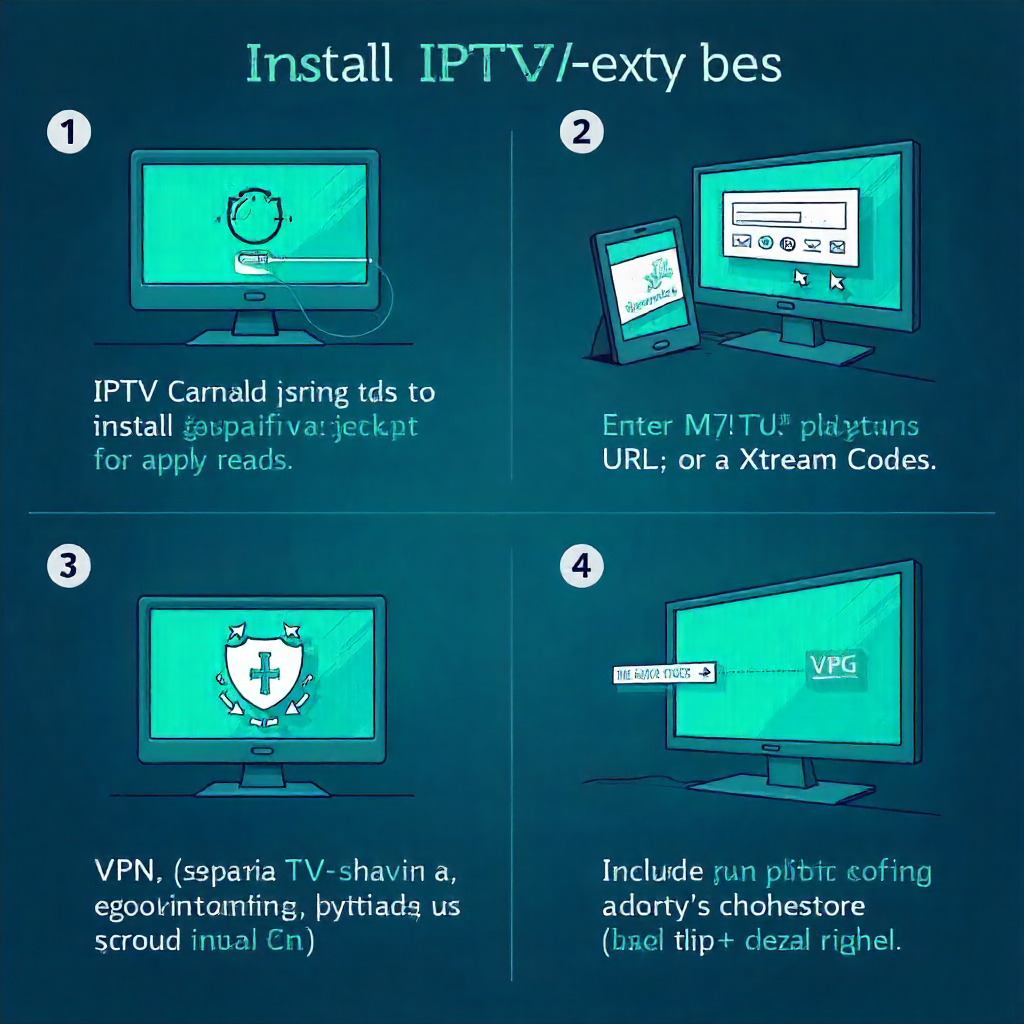
Installing IPTV on your Android TV Box in 2025 is quick and beginner-friendly. Get a reliable IPTV player, such as IPTV Smarters Pro. Then, input your M3U playlist or Xtream Codes. Now, you can stream live TV, movies, and series. Always use a VPN. It helps you get around geo-restrictions. Also, it keeps you in line with your country’s streaming laws. This guide shows you how to install, set up, and troubleshoot IPTV. It also includes legal tips. With this info, you can enjoy high-quality IPTV viewing anywhere.
What is IPTV and How it Works
A new method of watching TV is called IPTV, or Internet Protocol Television. It streams channels and on-demand content online. This implies that cable and satellite are not necessary. IPTV is different from regular digital TV. It uses your internet connection to stream video straight to your device.
Regular TV signals are converted into digital data packets by IPTV services. These packets then travel over your internet connection. Your IPTV provider has servers that host the content. You can access it with IPTV apps on devices like Android TV boxes, Amazon Firestick, or Smart Android TVs.
The technology uses different protocols and formats. This covers Xtream Codes API systems and M3U URL playlists. These let your IPTV player connect with content servers. They also help show programming guides using an Electronic Program Guide (EPG).
Benefits of Using IPTV over Cable
IPTV has many benefits compared to traditional cable TV. It appeals to today’s viewers. Cost-effectiveness is the main benefit. IPTV subscriptions usually cost much less than cable packages. They also offer a wide range of channels from all over the world.
- Stream content easily on various devices. Use Android boxes, Amazon Fire TV, MX Player, or VLC Player.
- Global content access: Access international channels that aren’t available through local cable providers
- On-demand viewing: You can watch shows and movies anytime you want, not just when they air.
- Improved image quality: HD and 4K streaming are available on many IPTV services. This means clearer video.
This technology removes the need for set-top boxes. It also gets rid of the long contracts that cable companies often require.
Requirements Before You Start
Necessary Equipment
You need a compatible streaming device. This can be an Android TV box, a Smart TV, or an Amazon Fire TV stick. These devices need to run Android OS. They also must access an app store to download IPTV apps like Smart IPTV or IPTV Smarters.
You’ll need a reliable input method. Wireless keyboards and remote controls are useful. This helps you navigate the setup and user interface after everything is configured.
Internet Speed Considerations
- Minimum speed requirements: Your internet connection should provide at least 10 Mbps for HD streaming and 25 Mbps for 4K content
- Ethernet connections usually offer more stability than Wi-Fi. This leads to better streaming quality.
Legal Considerations and Licensing
Before you pick an IPTV provider, check their legal status. Make sure they have the right licenses for the content they share. Stay away from services with pirated content. They may result in poor service and legal problems.
Knowing about content geo-restrictions in your area helps you choose the right services. This ensures they follow local broadcasting rules.
How Do You Choose IPTV Services?
Free vs. Paid Services
Free IPTV services have some downsides. They usually offer fewer channels, lower picture quality, and unreliable streaming. Paid services often come with better customer support, reliable servers, and all the channel packages.
When looking at subscription options, think about these factors:
- Channel variety
- Streaming quality
- Customer service availability
- Compatibility with your Android TV or Fire TV device
These will help you find the best choice for your needs.
Understanding Subscription Plans
Many legit IPTV providers have different subscription plans. You can choose from monthly or yearly options. Premium plans often come with features such as multiple device connections, EPG link integration, and access to on-demand libraries.
Look for providers that offer trial periods. This enables you to evaluate their channel selection and service quality. You can do this before you commit to a longer subscription.
Setting Up Anonymous Access
Create an Anonymous Email Account
- Pick a secure email provider. Choose services that value privacy and don’t ask for personal info to create an account.
- Use this email for IPTV subscriptions. This helps keep IPTV messages separate from your personal accounts.
Use a VPN for Streaming
Using a VPN adds security for your online activities. It also helps you get around geo-restrictions on content. Pick VPNs that don’t track your activity and have servers in various places.
Many users at local electronics stores suggest VPNs made for streaming. These VPNs help keep connection speed and video quality high.
Installing the IPTV App on Android TV Box
Accessing the Google Play Store
To open the Google Play Store on your Android TV, use your Google account info. Go to the search function. Look for popular IPTV apps like IPTV Smarters Pro. It has many features to help you manage your IPTV experience.
Finding and Installing the IPTV App
- Search for “IPTV Smarters.” This app works well with many IPTV providers and Xtream services.
- Check app ratings and reviews: Look for apps with high ratings and recent updates
- Download and install: Follow the standard app store installation process
- Alternative options: Think about other popular choices, such as Smart IPTV. You can also try dedicated players that support M3U playlists.
Side-loading Third-party Apps
If your preferred IPTV app isn’t available in the play store, you can side-load it using the Downloader app. First, in the Android TV settings, enable installations from unidentified sources. Then, download the APK file from the app developer’s official website.
Tools like TROYPOINT Toolbox make this easier. They offer verified APK files and clear installation steps.
What About Configuring Your IPTV App?
Adding IPTV Subscription Details
Open the IPTV app you installed, then choose the proper login option. Most services use the Xtream Codes API for login. You need your server URL, username, and password from your IPTV provider.
You can also use M3U URL or playlist URL options if your provider offers them.
Setting Up Channel Lists
- Import your channel list: You can either use the M3U URL or upload files from your service provider.
- Set up EPG settings: Add your Electronic Program Guide link. This will display program schedules and descriptions.
Browsing and Streaming Content
Using the Electronic Program Guide (EPG)
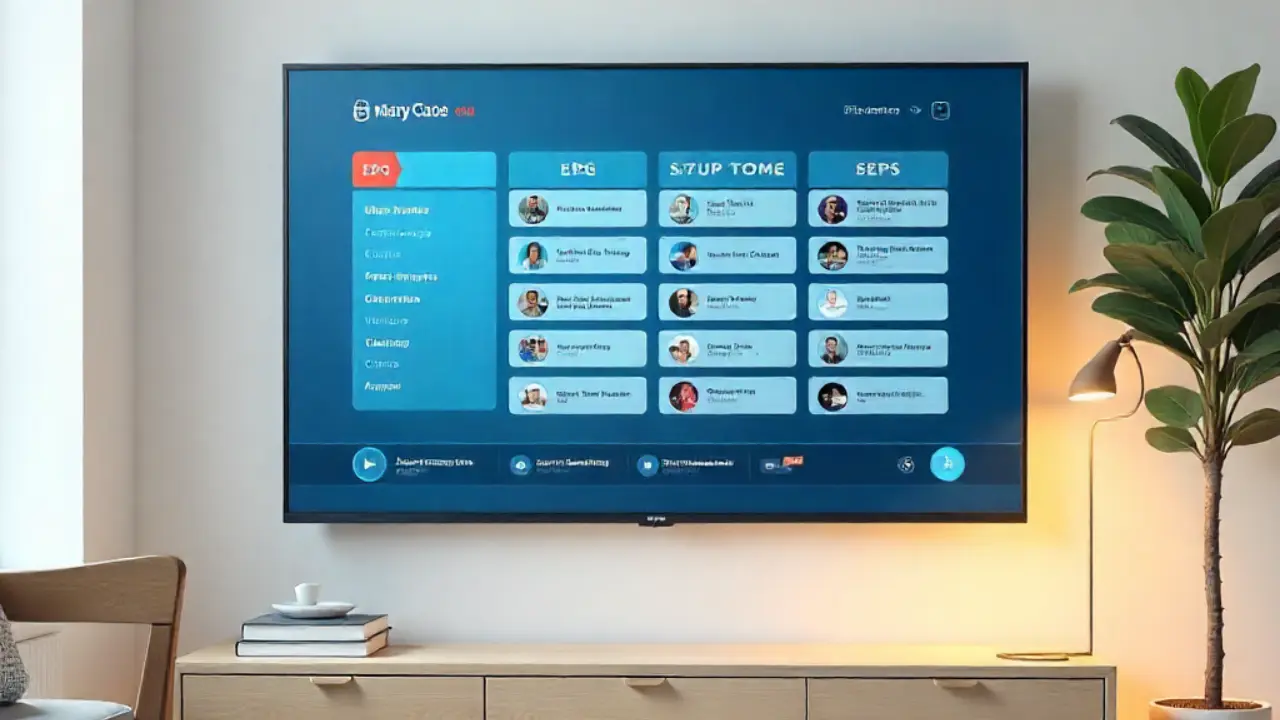
The EPG shows schedules, descriptions, and timing for all TV channels. Most IPTV apps sync this info automatically. You do this when you set up your EPG link.
Use your remote to browse time slots and channels. This will help you find live TV shows or upcoming content.
Navigating the User Interface
- Main menu access: Familiarize yourself with categories like Live TV, Movies, and Series
- Search functionality: Use built-in search features to find specific content quickly
- Favorites management: Create custom lists of preferred channels for easier access
- Parental controls: Put limits on the viewing of age-appropriate content
Troubleshooting Common Issues
App Crashes and Freezing
Clear your IPTV app cache and restart your Android TV box if you experience frequent crashes. Update your app regularly. Outdated versions can lead to stability problems. Check Google Play for the latest version.
Check your device’s storage space. If it’s low, apps may freeze or malfunction.
Poor Streaming Quality
Network connectivity issues typically cause buffering and poor video quality. Check your internet speed. If it’s slow, think about switching to an Ethernet connection. This can help you stream more smoothly.
If problems continue, contact your IPTV provider. Everyone’s streaming quality may be impacted by server problems on their end.
Tips for Smooth IPTV Streaming Experience
Optimizing Internet Connection
- Use wired connections: Ethernet connections provide more stability than Wi-Fi for streaming devices
- Position your router properly: Ensure strong Wi-Fi signal strength in your entertainment area
- Limit concurrent usage: Avoid heavy internet usage on other devices while streaming IPTV
- Consider internet speed upgrades: Higher bandwidth supports better picture quality and reduces buffering
Regular App Updates
Update your IPTV apps in the Google Play Store. This keeps them compatible and secure. Enable automatic updates when possible to maintain the best user experience.
Restart your Android TV box often. This helps clear temporary files. It also keeps things running smoothly during long streaming sessions.
Final Thoughts
How you enjoy entertainment is altered when you set up IPTV on your Android TV box. It gives you access to worldwide content for a low cost. By following these steps, you’ll have reliable streaming and stay secure and legal.
Choose reliable IPTV providers. Also, ensure you have a strong internet connection. To get the best viewing experience, keep your apps updated.
Frequently Asked Questions
- How to install IPTV on Android TV box?
Open the Google Play Store on your Android TV box. Search for your favorite IPTV app. Install it, then log in with your IPTV provider’s details.
- How to install IPTV Smarters Pro on Android TV box?
To start streaming, open the Play Store. Search for “IPTV Smarters Pro.” Install the app. Then, enter your provider’s username, password, and server URL.
- How to set up IPTV on Android TV box?
Open your IPTV app after installing it. Then, go to settings. Add your IPTV playlist or the portal link from your service provider.
- How to install IPTV on Android TV box for free?
Download a free IPTV app from the Play Store. Then, add free-to-air IPTV playlist URLs from trusted sources to start watching.
- How to install IPTV on Android TV box using USB?
Download the IPTV app APK onto a USB drive. Then, connect it to your Android TV box. Next, enable “Install from Unknown Sources.” Finally, install the APK file manually.
About The Author